Windows Night Light Not Working: Complete Guide
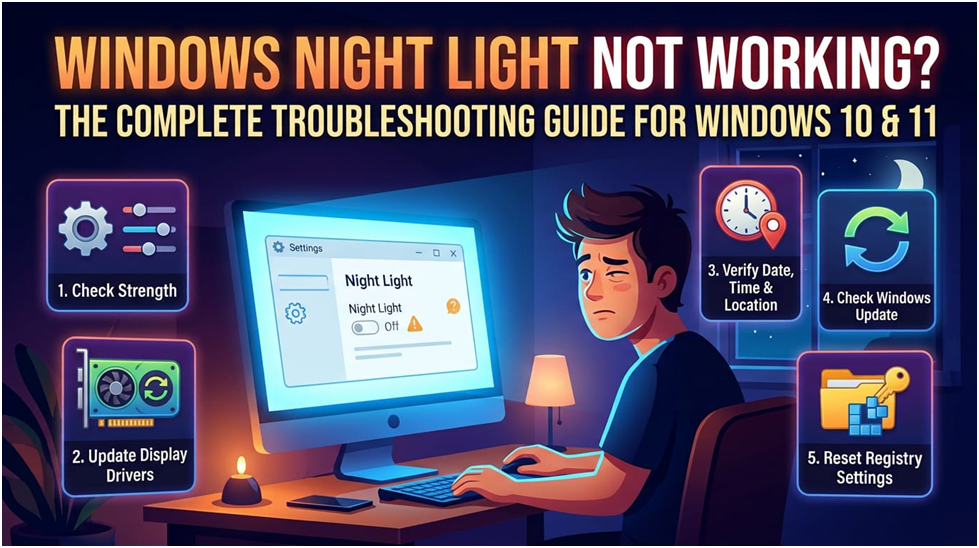
Night Light is an eye-saving feature in Windows 10 and 11. When you select it in Quick Settings, the harsh whites on your screen will give way to warmer hues. When using your computer after hours, the ability to filter out blue light is a helpful tool. The Night Light toggle may vanish, remain greyed out, miss sunset, or produce no discernible colour change, but it is meant to warm the screen when you turn it on or when its schedule begins. Before moving on to location, display driver, colour override, and repair tests, start with the Windows 11 controls that demonstrate whether Night Light itself functions. Because registry resets and script fixes are not supporting consumer repair paths, disregard them. If you are facing the issue of Night Light not working on Windows 11, then this article will guide you.
Unfortunately, sometimes Windows Night Light does not work when you click on Night Light in Quick Settings. Here’s how to troubleshoot your windows computer if Windows Night Light won’t turn off.
1. Determine the Strength of Night Light
Modify the Intensity of Night Light
You may adjust the intensity of the effect using Night Light’s customisable strength. You won’t even notice when Night Light turns on if you have it set too low.
Therefore, it’s a beneficial idea to ensure the Night Light strength is set appropriately. To alter the intensity of Night Light:
- To access the Settings panel, press Win + I.
- Click on Display in the window on the right.
- In the Brightness & Colour area, select Night Light.
- Verify that Night Light is on. Click the Turn on now button if it is not.
- The warm colour tone can then be changed by dragging the Strength slider. After you adjust it to your preferred setting, Night Light ought to resume functioning.
To determine whether Night Light is malfunctioning because of a transient problem, you should also try restarting your computer. Verify whether Night Light is operational again after restarting your computer.
2. Update the Drivers for Your Graphics Card
Upgrade the Windows Display Driver
After installing new updates or upgrading Windows, Night Light may cease functioning. If so, make sure the most recent graphics card drivers are installed. Programs or display-related functions may malfunction due to missing or out-of-date graphics card drivers. To upgrade your Windows graphics drivers, follow these steps:
- To access the WinX menu, press Win + X.
- From the access menu, select Device Manager.
- Extend the Display Adapters area in Device Manager.
- Choose Update with a right-click on your graphics card device.
- Choose Search automatically for updated driver software in the Update window. All of your display device’s pending driver updates will be downloaded and installed by Windows.
Restarting your computer after installation should enable the Night Light feature once more. You can also try other ways to update the Windows graphics driver if Windows is unable to locate any driver updates.
3. Install the Graphics Driver Again
Remove the Windows Display Driver
To resolve frequent issues with the graphics driver, try removing and reinstalling it if you are using the most recent version. Here’s how to accomplish it:
- Expand the Display Adapters section after opening the Device Manager.
- Uninstall the device by performing a right-click on the display device driver.
- To confirm the action, click Uninstall in the confirmation window. Please do not verify the Delete of the driver software for this device option.
- Restart your computer after uninstalling it. Windows will automatically install any missing graphics device drivers after the restart.
4. Use the Registry Editor to Reset the Night Light Settings
Reset the Registry Editor’s Night Light Settings
The Registry Editor allows you to manually reset the Night Light setting. If none of the aforementioned solutions work to remedy the issue, this method is beneficial. It’s also useful if the Night Light option in Settings is greyed out.
To change Night Light’s settings:
- To launch Run, press Win + R.
- To launch Registry Editor, type regedit and click OK. If User Account Control prompts you, click Yes.
- Go to the following location in the Registry Editor:
HKEY_CURRENT_USER\Software\Microsoft\Windows\CurrentVersion\CloudStore\Store\DefaultAccount\Cloud
- Find the following keys under the Cloud key:
- default$windows.data.bluelightreduction.settings
- default$windows.data.bluelightreduction.state
- Choose Delete with a right-click on the first key. Do the same with the second key.
- Close Registry Editor after deleting both keys.
- To resume using Night Light, restart your computer and configure it.
You will need to take ownership of the registry keys and try again if you run into an error when trying to delete them.
5. Verify the Date and Time Settings on Your Computer
Night Light may be programmed to automatically turn on and off at predetermined times. On the other hand, a delayed start or turn-off may result from an erroneous date and time settings.
Please verify the time and date in the taskbar’s lower-right corner to ensure accuracy. Here’s how to adjust the date and time on your machine if it needs to be corrected:
- To access Settings, press Win + I.
- In the left pane, select Time & Language.
- Next, select Date & Time.
- To turn off the automatic settings, flip the switches for Set time automatically and Set time zone automatically.
- To manually set the date and time, click the Change button. After making the necessary adjustments, click Change.
Make sure to activate the Set time zone automatically and Set time automatically settings after you’re done.
6. Activate Location Services
When your system location service is enabled, the Night Light feature can be advantageous. If you have scheduled Night Light to operate at specific hours, the feature is crucial once more. You can leave the location service disabled if you would rather activate Night Light manually.
To enable location on your system:
- To access Settings, press Win + I.
- In the left pane, select the Privacy & Security tab.
- Go to the app permissions section by scrolling down in the right pane.
- Select Location.
- To turn on location services, flip the switch. Thereafter, verify whether the Night Light feature is functional.
7. Update Windows
Windows Update
According to reports, there was a Night Light problem in earlier Windows versions that might prevent it from operating correctly. To determine if you can resolve the issue, verify whether a new update for your Windows version is available.
Click on Check for updates after selecting Settings > Windows Update to update Windows. Thereafter, install any pending updates and look for any enhancements.
8. Make Use of Alternative Third-Party Night Light Apps
Use an alternative to Night Light while you wait for the bug to be rectified. You may make your screen appear warmer by using third-party programs like SunsetScreen and f.lux. They can be further altered to accommodate different times of the day.
If you use your system all day, f.lux in particular is a very customisable tool.
Reviving Night Light
You can avoid the trouble of utilising a third-party blue light filter app by using Night Light, which is a useful feature. Use one of the article’s methods to resolve the issue, depending on whether the option is greyed out, not working, or only partially working.
Common Questions
Please Clarify Why Night Light Is Not Included in Quick Settings.
On display pathways that are not supported, Night Light does not appear. Drivers that do not support Night Light include DisplayLink and Microsoft Basic Display, according to Microsoft.
How Can I Reduce the Redness of Windows Night Light?
Drag the Strength slider to the left after selecting Settings > System > Display > Night Light. Microsoft also lists Turn off now as a direct method of preventing an unreadable red tint on HDR televisions.
Does Night Light Require Location Services?
Windows location services are only required for the sunset-to-sunrise schedule. The sunset computation has no bearing on the scheduling of custom set hours.
Can Windows Night Light Be Replaced with f.lux?
When Windows Night Light isn’t available, f.lux is a third-party blue light substitute, but it doesn’t resolve the built-in Windows function.
Should I Use Night Light Registry Fixes?
No. According to the provided Microsoft Q&A study, older CloudStore registry tweaks and PowerShell toggles are obsolete workarounds that are neither dependable for consumer repair techniques nor officially supported.

How Does A CPU Work?
How to Fix Printer Offline: Complete Guide

Which Graphic card is best for Laptop: Let’s Compare
About Author
