Computer speakers not working: Complete Guide
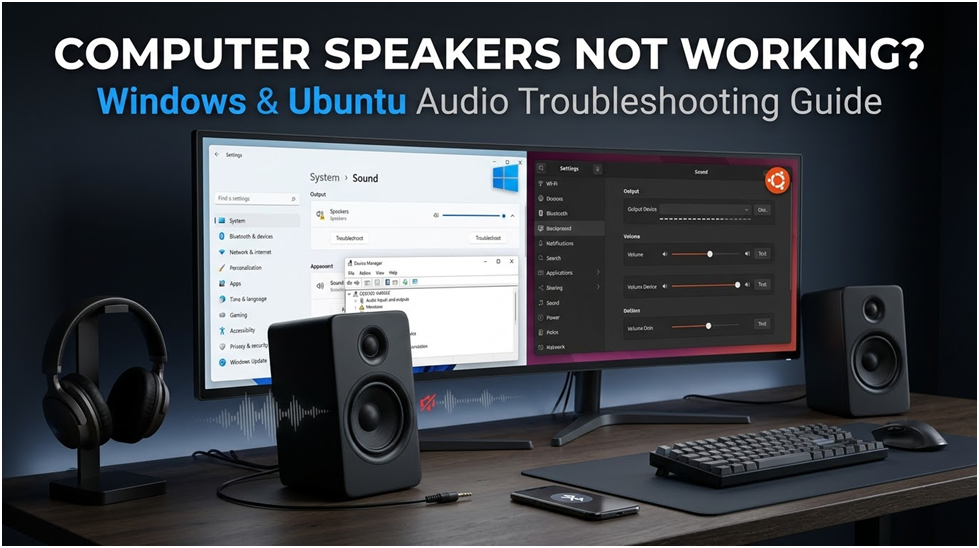
Don’t worry if your computer speakers not working! This tutorial will assist you in resolving typical sound or audio issues on both Windows and Ubuntu, whether you’re attempting to view a movie, listen to music, or enroll in an online course.
An Overview of Typical Audio Problems
Common problems include delayed sound, crackling or popping sounds, distorted sound, and no sound on computer at all. Incorrect settings, out-of-date drivers, or defective hardware are just a few of the causes of these problems.
Here are a few instances of audio issues:
- No Sound: Even with the volume turned up, there is no sound coming from the computer speakers, headphones, Bluetooth headsets, or other audio devices.
- Distorted or Crackling Sound: The audio sounds strange, as if it’s crackling or jumbled.
- Intermittent Sound: It is difficult to listen continuously due to the audio’s sporadic cuts.
- Low Level: Even when the level is at its maximum, the sound is extremely quiet or hardly audible.
- Audio Lag: During streaming or video playback, the sound lags behind the video.
- Echo or Feedback: During voice or video calls, in particular, you may hear an echo or feedback.
- One-Sided Sound: Only one speaker or one side of the headphones produces sound.
- Pc No Sound After Update: When you update Ubuntu or Windows, the sound stops functioning.
- Incorrect Output Device: The sound is played through the incorrect device, such as the built-in speakers rather than your headphones.
- Bluetooth Problems: Bluetooth speakers and headphones have issues with sound or connectivity.
Resolving Windows Sound or Audio Issues
The following actions may be helpful if your Windows machine doesn’t have any sound. Proceed in the correct order. Try the first one first to see if it helps. Proceed to the next step if it doesn’t.
Step 1: Inspect Speaker and Headphone Connections, Plugs, Jacks, and Cables
Verify that everything is connected:
Verify that your computer is connected to your speakers or headphones. Make sure the built-in speakers are turned on in the BIOS or UEFI settings if you’re using them.
When it comes to external audio devices, make sure they are charged, that the cables are connected correctly, that the ports are intact, and that the device is turned on.
Try a Different Port: Attempt to connect your headphones or speaker to a different USB or audio port.
Test on a Different Device: To make sure it functions, pair or connect the speaker or headphones to another device.
Proceed to the next step if the previous step isn’t helpful.
Step 2: Examine the Audio Settings
You might not hear anything from the speakers or audio device if the audio is muted or the volume is too low.
Increase the Volume: Make sure the volume is up by clicking the speaker icon in the taskbar.
Verify Physical Volume: Make sure external speakers or headphones are turned up as well.
Look for Mute: Open the Volume Mixer by heading to Start > Settings > System > Sound > Volume Mixer. Ensure that no apps are muted and that all volumes are set correctly.
Open Volume Mixer settings.
If that didn’t resolve the issue, proceed to the next step.
Step 3: Check the Speaker Output Device
If there are many audio output devices to choose from and the wrong one is picked, you might not hear any sound from the speakers or headphones.
Choose the Correct Output Device: Go to Start > Settings > System > Sound. Under Output, select the audio device you want to utilize. This will also make it the default device.
Open output device settings.
If picking the correct audio output device didn’t help, continue to the next step.
Step 4: Repair Audio Drivers
Updating audio drivers or rolling back drivers can typically fix audio playback issues caused by faulty audio drivers.
Use SupportAssist to update audio drivers.
Your Dell machine is automatically scanned by Dell’s SupportAssist utility, which finds and installs driver updates:
- Locate and launch SupportAssist.
- Choose Update Software from the Home tab.
- To check for driver updates, select Start and adhere to the prompts.
You can also manually download and install Dell drivers by visiting Dell Drivers & Downloads.
Find out more about updating your Dell’s drivers.
Roll Back Drivers
Try rolling back your audio driver to an earlier version if you experience audio problems after installing Windows updates.
- Right-click the audio device in Device Manager.
- After choosing the Properties > Driver tab, choose Roll Back Driver (if available).
Proceed to the next step if your issue is not resolved by updating or rolling back audio drivers.
Step 5: Use the Windows Audio Troubleshooter
Common audio issues may be automatically resolved with the Windows audio troubleshooting.
Navigate to System > Sound under Start > Settings.
To identify speaker problems, choose Output Devices under Advanced and adhere to the on-screen instructions.
Proceed to the following step if using the troubleshooter is ineffective.
Step 6: Examine External Audio Equipment
When utilizing external speakers or headphones:
Verify Connections: Ensure that your speakers or headphones are paired or connected to your computer correctly. See the device’s Bluetooth pairing user manual.
Test on a Different Device: To check if the speakers or headphones function, try them on a different device.
For assistance, contact the maker of the audio device if it doesn’t function.
Proceed to the following step if the audio device is compatible with another device.
Step 7: Execute the Dell Sound Test
Dell desktops and laptops have built-in diagnostic tools to look for hardware-related faults, such as audio difficulties.
Obtain Dell SupportAssist: Navigate to the SupportAssist sound test. Install SupportAssist if necessary by following the instructions if it isn’t already installed.
Examine the Results: SupportAssist shows the results after the diagnostic is finished. You could be instructed to update drivers or contact Dell Technical Support for repairs or replacements if a hardware problem is found.
Make Use of Dell Pre-Boot Diagnostics:
Restarting your computer and repeatedly pressing F12 at startup will bring up the One-Time Boot Menu if you are unable to launch Windows.
To do a comprehensive hardware assessment, including audio components, select Diagnostics and adhere to the instructions.
Note the error code, validation code, and service tag if the diagnostics are unsuccessful. Next, search up the error code to identify choices for replacement or repair.
Try these extra steps to resolve audio issues if the sound is still not working.
Resolving Ubuntu Sound or Audio Issues
The following actions may be helpful if your Ubuntu machine doesn’t have any sound. Proceed in the correct order. Start with the first step to see if it helps. Proceed to the next step if it doesn’t.
Step 1: Verify Links
Verify that everything is connected:
Verify that your PC is connected to your speakers or headphones. Make sure the built-in speakers are enabled in the BIOS or UEFI settings if you’re utilizing them.
When it comes to external audio devices, make sure they are charged, that the cables are connected correctly, that the ports are intact, and that the device is turned on.
Try a Different Port: Attempt to connect your headphones or speaker to a different USB or audio port.
Test on a Different Device: To make sure it functions, pair or connect the speaker or headphones to another device.
Proceed to the next step if this isn’t helpful.
Step 2: In Settings, Check the Audio Output
Select the appropriate headset or speaker to use as your preferred output device.
Navigate to Settings: Click Sound after opening Settings.
Choose the Correct Device: Verify that the right device is chosen under Output.
Modify Volume: Ensure that the volume is not muted but rather turned up.
Proceed to the next step if that didn’t help.
Step 3: Reinstall ALSA Sound Drivers
To launch Terminal, press Ctrl + Alt + T.
To update the drivers, type the following command and hit Enter:
sudo aptitude –purge reinstall linux-sound-base alsa-base alsa-utils linux-image-`uname -r` linux-ubuntu-modules-`uname -r` libasound2
Proceed to the next step if updating audio drivers doesn’t resolve your issue.
Step 4: Compile the ALSA Audio Driver
Compiling the ALSA audio driver can assist if audio isn’t functioning.
Restart the Service: To restart PulseAudio, open Terminal (shortcut key Ctrl + Alt + T), type sudo alsa force-reload, then hit Enter.
Proceed to the next step if this didn’t address your issue.
Step 5: Update Ubuntu
Ubuntu updates can fix audio problems.
Note: To update software or modify system settings, administrator credentials are needed.
Update Drivers: Type the following command into Terminal (shortcut key Ctrl + Alt + T) and hit Enter:
sudo apt update && sudo apt upgrade -Y
Proceed to the next step if upgrading Ubuntu does not fix the audio problem.
Step 6: Perform the Dell Sound Test
Dell desktops and laptops have built-in diagnostic tools to look for hardware-related faults, such as audio difficulties.
Make Use of Dell Pre-Boot Diagnostics:
To reach the One-Time Boot Menu, restart your computer and repeatedly press F12 during startup.
To do a comprehensive hardware examination, including audio components, select Diagnostics and adhere to the instructions.
Note the error code, validation code, and service tag if the diagnostics are unsuccessful. Next, search up the error code to find choices for replacement or repair.
Try these extra steps to fix sound issues if the sound is still not working.
Resolving Dell Monitor Audio Output Issues
Setting Up Audio for Speakers on Monitors
Make sure the built-in speakers are the default output device when using a Dell monitor:
- Verify whether the Dell monitor has integrated speakers. Consult the user manual for information on the monitor’s specifications.
- Navigate to Start > Settings > System > Sound on Windows.
- Choose the monitor as the output device under Output.
- Navigate to Settings > Sound in Ubuntu.
- Choose the monitor as the output device under Output.
Advice: When the Dell monitor is connected via HDMI, audio is functional. Audio is not supported by VGA or DisplayPort connections.
Resolving Bluetooth Audio Problems
Bluetooth Audio Device Connections
To pair your Bluetooth audio device, follow these steps:
- Navigate to Start > Settings > Bluetooth & Devices on Windows.
- To connect to your audio device, select Add Device.
- Navigate to Settings > Bluetooth in Ubuntu and establish a connection with your audio device.
Resolving Bluetooth Audio Problems
Regarding Bluetooth audio problems:
- Repair the device after unpairing it.
- Use SupportAssist to update Bluetooth drivers.
How to Avoid Audio or Sound Issues
The following advice will help you steer clear of potential sound issues:
- Keep Everything Up to Date: Ensure that your audio drivers and operating system are always current.
- Verify Connections: Ensure that all wires are securely plugged in and undamaged.
- Be Aware of Conflicting Software: Installing new software that could affect your sound settings should be done with caution.
- Safeguard Your Devices: Keep your gadgets dry and free of moisture and dust.
Restart Your Computer: Restarting the computer can sometimes resolve audio issues.
Unmasking the Truth: Are Motherboard Screws Universal?
What Motherboard do I have? Find out Now
Understanding and Preventing Computer Overheating: The Ultimate Guide
About Author
