Microsoft Copilot Licensing: Complete Guide
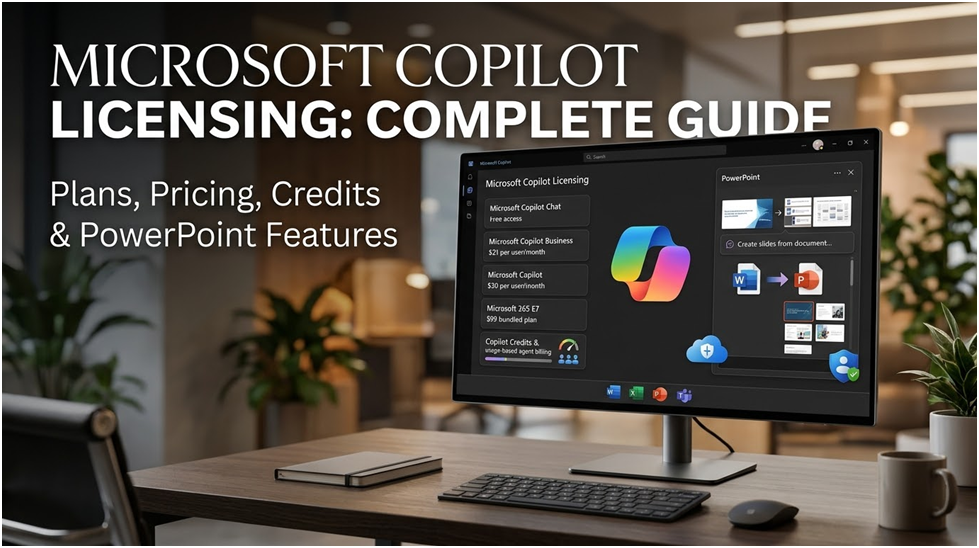
Copilot licensing is the component of the Microsoft 365 license that costs the most per seat and changes the fastest. There is a free chat feature, an add-on that costs $30 per user, a version that is less expensive for smaller businesses, a package that comes with it, and an agent-specific usage-based meter.
Additionally, Microsoft changed the names of the products: Microsoft 365 Copilot is now Microsoft Copilot, and Microsoft 365 Copilot Chat is now Microsoft Copilot Chat.
This guide describes what each choice entails, what you need to purchase, how agents and Copilot Credits are billed, and how to purchase just the seats you plan to use. It expands upon the basic plans covered in our Microsoft 365 license guide.
Confirmed in November 2026, this month’s updates from the Partner Center, Microsoft Learn, and Microsoft’s pricing pages provide a basis for comparing prices and regulations. Microsoft claims that its pricing pages are for marketing purposes; thus, your checkout or agreement is what matters. Prices are US list prices.
What Is Required in Order to Utilize Microsoft Copilot?
A Microsoft Entra account, an eligible Microsoft 365 subscription, and a Copilot license are required for the complete experience. Copilot Chat is still available to users without the license.
Copilot is based on the user’s own mail, files, and meetings and operates within Word, Excel, PowerPoint, Outlook, and Teams.
The remainder of this guide focuses on those three prerequisites.
What Is the Price of Microsoft 365 Copilot?
According to Microsoft’s pricing page for the Copilot enterprise add-on, the enterprise Copilot add-on costs $30 per user per month for an annual subscription that automatically renews. It requires a separate qualifying Microsoft 365 plan.
Microsoft’s pricing announcement for annual subscriptions with monthly billing shows that paying monthly on an annual commitment costs roughly 5% extra.
According to Microsoft’s Partner Center announcement, Copilot Business is only available for businesses with up to 300 users on a business plan and costs $21 per user per month. It is not available on E3, E5, or Frontline plans, and Microsoft 365 E7 bundles Copilot into its $99 price.
If you have over 300 users or are on an E3, E5, or Frontline plan, the Copilot Business column doesn’t apply to you. Ask your partner or look at the checkout pricing.
These are list prices on top of the base plan. Business customers have experienced temporary promotions on Copilot Business and Business bundles.
$30 versus $21 is not the most significant comparison. The right-sizing section addresses the difference between seats that are purchased and seats that are used.
Base Licenses That Qualify
Before purchasing Copilot, you must have the prerequisite license.
Since Copilot is an add-on, each user must have a prerequisite license. They are included on Microsoft’s license options page.
The typical ones include:
- Microsoft 365: Business Basic, Business Standard, Business Premium, E3, E5, F1, and F3.
- Microsoft 365 Apps: Microsoft 365 Apps for business and enterprise.
- Microsoft 365 E7: Copilot is part of Microsoft 365 E7.
- Office 365: E1, E3, E5, and F3.
- Standalone services: Teams Enterprise, Teams Essentials, Exchange Online, SharePoint, OneDrive for work or education, Project and Planner, and Visio plans.
Copilot Business supports up to 300 licensed users per tenant and particularly requires Microsoft 365 Apps for Business or Teams Essentials, Business Basic, Standard, or Premium.
Technical Specifications
In accordance with Microsoft’s Copilot specifications:
- Users must have a Microsoft Entra ID account for work or school.
- Exchange Online mailboxes are necessary for mailbox-based experiences. Group mailboxes do not support Copilot.
- Give users who require Copilot in desktop apps access to Microsoft 365.
- A OneDrive account is also required for some functionality.
- A Teams license is required for Copilot in Teams.
- Copilot in PSTN calls also requires a calling plan and a Teams Phone license.
- Copilot is incompatible with Microsoft 365 Apps for Enterprise device-based licenses.
- Ensure WebSocket connections aren’t restricted and permit *.cloud.microsoft and the Copilot endpoints to pass across your network.
- Copilot requires third-party cookies to be enabled in Word, Excel, and PowerPoint for online use.
Microsoft offers the Copilot License Details diagnostic to examine a single user.
Copilot Credits, Copilot Studio, and Agents
Copilot billing changes from per user to per use at the agent level.
The parts include:
- Copilot Credits: The single currency used by all qualified AI services is Copilot Credits.
- Copilot Studio billing: Copilot Studio agents are now billed in Copilot Credits rather than messages as of September 1, 2025; pack sizes and the pay-as-you-go rate remain unchanged.
- Declarative agents: Declarative agents based on public webpages and instructions are included with Copilot Chat.
- Pay-as-you-go: Pay-as-you-go is used by other agents.
A Copilot license includes the following benefits:
- Agents using Microsoft Graph tenant grounding, classic answers, or generative answers in Copilot Chat, Teams, or SharePoint are not billed when they operate as the authorized user.
- In Copilot Studio, users of your agents do not require a specific license.
- Copilot Studio is inaccessible to visitors.
The majority of SharePoint administrators require this licensing information.
You can use Microsoft Learn’s SharePoint Advanced Management features for your Copilot deployment if any of the following conditions are met:
- A Copilot license has been assigned to at least one user within the company. It is not necessary for that user to be a SharePoint administrator.
- You purchase the SharePoint Advanced Management Plan 1 add-on, and your subscription covers SharePoint Plan 1 or 2 (or Kiosk).
- Microsoft 365 E7 is what you got.
The base subscription must be either Office 365 E3, E5, or A5; Microsoft 365 E1, E3, E5, or A5; or a US government plan.
Certain capabilities require the optional Plan 1 add-on, such as limited site creation via apps.
The oversharing toolkit includes site access evaluations, limited content discovery, data access governance reports, inactive-site and site-ownership regulations, and more.
View the overview of Microsoft’s SharePoint Advanced Management.
Before you design a pilot, it’s important to note that one Copilot seat can unlock the governance tools for the entire tenant.
How to Utilize Microsoft Copilot in PowerPoint
You’ve come to the right site if you’re wondering how to utilize Copilot in PowerPoint to improve your presentations.
Microsoft has made significant investments over the past year to make its Copilot generative AI assistant the best tool for productivity at the next level.
There are now several variations of the Copilot experience, including Microsoft 365 Copilot, Security Copilot, and the regular Microsoft Copilot (formerly Bing Chat). Additionally, Copilot for PowerPoint can be accessed in several ways.
A Microsoft 365 Copilot membership is required if you want the most sophisticated experience, which includes customizing Copilot using Copilot Studio. As an alternative, you can access the fundamental capabilities of PowerPoint on the web by subscribing to Microsoft Copilot Pro.
In PowerPoint, What Can Copilot Do?
Let’s go over what you can accomplish with Copilot before we look at how to use it in PowerPoint.
Microsoft created Copilot, a generative AI assistant that is integrated into several Microsoft applications, including Word, Excel, and Teams. Copilot facilitates the creation, editing, and improvement of PowerPoint presentations. Additionally, it can help with content summaries and slideshow optimization.
Copilot for PowerPoint has access to Microsoft Graph, Microsoft’s security, identification, and privacy compliance regulations, and the same underlying LLM technology as all Copilot experiences integrated into Microsoft Office products.
Additionally, it lets you use natural language instructions to communicate with a generative AI bot.
Copilot can summarize a current presentation to make it shorter and more concise, or it can generate a presentation based on a certain topic. Additionally, Copilot can reorganize your slides to create a more coherent narrative.
It can also include your company’s branding in each presentation, giving stakeholders and customers a consistent impression.
The AI tool in PowerPoint may extract data from your other Microsoft resources, including Word documents and OneDrive files, just like prior Copilot versions.
Users can create extremely relevant and distinctive presentations with less time and effort because of the tool.
How to Turn On Microsoft Copilot in PowerPoint
Copilot for PowerPoint offers numerous advantages to users, much like the Copilot experience in Microsoft’s other office and productivity applications. It can help you save time when creating images, creating a first draft of your presentation, and more. Additionally, it might spark your imagination with various ideas to strengthen your presentation skills.
You must first learn how to give Copilot access in PowerPoint before you can use it effectively.
If you use Copilot in PowerPoint on your own, you can purchase a Copilot Pro subscription, which costs $20 per user per month, to access basic Copilot features in the web version of the program. Nothing needs to be “activated” in this situation. All you have to do is buy your plan and get online access to PowerPoint.
You must have a Microsoft 365 subscription in order to use Copilot in PowerPoint’s desktop editions.
Alternatively, a Copilot for Microsoft 365 subscription is required if you want enterprise-grade security and sophisticated functionality (like Copilot Studio). You will have to pay $30 a month for each user.
Additionally, business users must have a Microsoft 365 plan that has been approved, such as Microsoft 365 E3, E5, Business Basic, Premium, or Standard.
A Microsoft Entra ID and all the pertinent app accounts that you will use with PowerPoint are also required. This may entail creating a Microsoft Loop account, a Teams account for PowerPoint presentations in meetings, and a OneDrive account for file storage and sharing.
It’s important to make sure you have the appropriate security measures in place before enabling Copilot for your company.
How to Utilize Copilot in PowerPoint: Getting Initiated
It’s very easy to learn how to utilize Copilot in PowerPoint once you’ve set up your licenses and accounts.
Click the “Copilot” icon in the ribbon’s “Home” tab at the top of the screen after launching a PowerPoint presentation.
The Copilot assistant should appear on the right side of your screen, offering you a variety of “example prompts” to work with, as well as a text area where you can write instructions.
Making Slides or a Presentation Using Prompts
All you have to do is type a prompt into the text box if you’re starting from scratch.
“Act as an enterprise sales professional, and create a presentation for shareholders about sales figures in the last year” is one example of how Microsoft suggests providing the app with a lot of context and information.
Add sections on business expansion, average order value, and client retention.
If you would like Copilot to incorporate additional information, you may also paste text from other files and links to web resources into the chat box.
You can alter the appearance and style of a slide or the entire presentation once Copilot has created it for you.
You may either manually edit your slides or view different variations by using the “Designer” icon.
Using Templates to Create a Presentation
Using a template could be beneficial if you’re having trouble getting started with your PowerPoint presentation.
Copilot may create a presentation for you using the pre-existing themes and templates that you (or your company) have saved.
Using a template:
- Click File > New to start a new presentation with a template or theme, or open an existing presentation with your theme.
- On the Home menu, select the Copilot button.
- Ask Copilot to add a slide, arrange your information, summarize slides, or add pictures to introduce changes to the presentation.
Using a File to Create a PowerPoint Presentation
Creating presentations from an existing file is another simple approach to learning how to utilize Copilot in PowerPoint.
Notably, this feature is only possible with a Copilot for Microsoft 365 license. As of right now, Copilot Pro users are unable to utilize this feature.
By launching PowerPoint and choosing the Copilot option in the Home tab, you can convert a Word document into a PowerPoint document if you have the appropriate license.
Next:
- Select “Create Presentation from File.”
- Select the Word document from which you wish to extract your material.
- You can look up the file name if you are unable to locate it immediately.
- To send the document to Copilot, select Send.
The text in the Word document will subsequently be used by the AI program to create a presentation for you. It can be altered and customized to meet your needs.
Notably, Microsoft provided some advice for businesses using Copilot to create PowerPoint presentations from Word documents, including:
Use Word’s Styles: Using Word’s “Styles” feature can help you organize your work and help Copilot comprehend its structure. This will guarantee that your presentation’s material may be divided into comprehensive slides by the program. Whenever feasible, organize your information using headers and titles.
Add Pictures: Copilot will automatically add photos to your presentation if you include them in your Word document. If you don’t already have any images, you may always add them later or ask Copilot to create them for you.
Make Use of a Template: It’s a good idea to start with a template before importing your Word material if your organization employs a uniform template for presentations. This will guarantee that your branded presentations remain consistent.
In Conclusion
To maximize Copilot in PowerPoint, you must follow a few key steps, even though it’s easy to learn. Taking the time to become proficient with Copilot will guarantee that you achieve the best outcomes, from selecting the ideal Copilot plan to ensuring that you can use the features efficiently. To make sure you’re utilizing new features as they appear, please remember to keep up with the most recent upgrades to Copilot in Microsoft Office applications and other Microsoft tools.

15 Common Windows 11 Problems and How to Fix Them

Optimal CPU Temperature Management

How to Determine if Your PC is Bluetooth-enabled
About Author
