What Does Reset All Settings do on iPhone? A Complete Guide
If you are wondering, what does ‘reset all settings’ do on an iPhone? Then this article might help you. All of your iPhone’s data, including your contacts, notes, messages, images, and more, will not be lost if you reset all of the settings. However, resetting all settings also eliminates Apple Card, even though you won’t lose any of the data on your iPhone.
“All settings – including network settings, keyboard dictionary, home screen layout, privacy settings, location settings, and Apple Pay cards” – will be deleted from your iPhone, according to Apple. But they quickly clarify that no media or data would be erased.
All of your iPhone or iPad’s settings, including the following, will be erased or restored to their original settings when you reset them all:
What Gets Erased When You Reset All Settings?
Network Configurations
- Passwords and Wi-Fi networks that were previously saved will be erased. For instance, your iPhone will no longer automatically establish a connection to your wireless network.
- Hotspot connections that have been stored will be deleted.
- Bluetooth connections that have been stored will be removed.
- The terms you have contributed to the dictionary on your iPhone or iPad will be removed.
- We’ll delete your Apple Pay cards.
- Resets every setting on your device, including date & time, wallpaper, sounds, display & brightness, background app refresh, and more.
- If iCloud Keychain is enabled, all iCloud Keychain devices that use the Apple ID will have their Wi-Fi credentials reset.
- Deregisters your device from FaceTime and iMessage.
- eliminates your passcode and Touch ID.
- All of your limitations are reset if limitations are enabled.
- eliminates Face ID.
- restores the accessibility configuration.
- Your encrypted backup password is deleted.
Your Personalised Settings Will All Be Reverted to Their Original State, Including:
- Aeroplane Mode: Disabled
- Wi-Fi: on; Bluetooth: on; data roaming: off; personal hotspot: off; VPN: off
- Location Services for Apps: Off (Apps will cease using your location until you give them permission.)
- Background App Refresh: On.
- Request to Join Network:
What Resets All Settings? Doesn’t Do
- Apps, music, pictures, and movies that are stored on your device are not deleted.
- It doesn’t delete anything from your iCloud.
- You’ll have the same options from built-in programmes like Mail and Safari.
- Any third-party programmes you use won’t have their settings altered.
- You’ll have the same iCloud settings. For instance, Find My won’t be eliminated. There will be no removal of the activation lock.
- The list of trusted computers won’t be reset. Unless it’s a brand-new computer, you won’t notice “Trust This Computer” alerts following the reset.
- The reset does not affect your iTunes and App Store settings. Your purchases won’t be lost.
- Your social media preferences won’t change. Your device’s social media profiles will remain active.
- No changes will be made to your privacy settings.
- It doesn’t rearrange your directories or apps. App folders that you have created won’t be removed. The Home Screen’s built-in apps won’t be rearranged to their original configuration.
- You won’t be logged out of the App Store or iCloud.
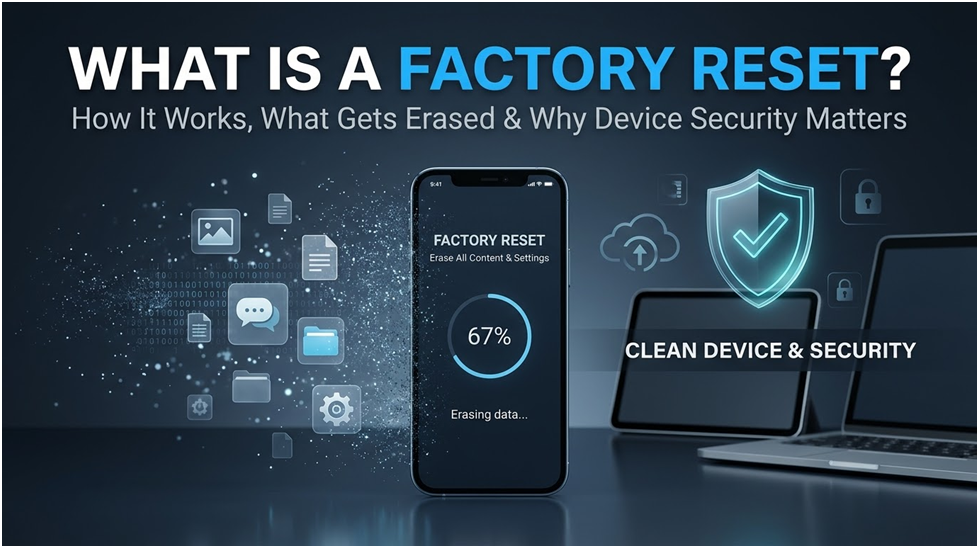
Difference Between Reset All Settings and Erase All Content and Settings
The distinction between erasing all content and settings and resetting all settings is important.
These two choices serve distinct purposes. Resetting all settings will erase any settings you may have on your iPhone, including your Wi-Fi password.
On the other side, erasing all contents and settings will return the iPhone to its initial factory configuration.
As the name implies, “Erase all Contents and Settings” will remove all personal data and settings on your device, including all media and files, but it won’t remove data from the device.
Prior to Beginning
If you intend to reset all of your iPhone’s settings, we believe you should bear the following points in mind:
- You don’t need to completely reset your iPhone (erase all contents and settings) unless you intend to sell or give it away. Often, small issues can be resolved by resetting all settings.
- Resetting every setting won’t cause you to lose any data. However, you will return the iPhone’s system settings to their original state. You will thus have to change your preferred settings because they will be reset to the default.
- even though this procedure won’t cause you to lose any data. Making a backup of your iPhone’s data is still a good idea. If something goes wrong, your data could still be lost.
- If you reset all settings, your device will forget the Wi-Fi network, and you’ll need to reconnect.
- Your privacy settings should be configured as soon as the network settings have been reset.
How to Reset Every Setting on an iPhone
When you’re ready to reset every setting on your iPhone, just follow these easy steps:
Step 1: Select “General” by scrolling down after opening “Settings”.
Step 2: Tap “Reset” after scrolling to the bottom of the subsequent screen.
Step 3: Tap “Reset All Settings” to return your iPhone’s settings to their original state. Then, tap “Reset All Settings” once again to confirm.
Caution!
Please be aware that you have the option to return a specific setting to its original state. You could decide to reset the home screen layout or the network settings, for example.
You can reset all of your preference settings by using the Reset All Settings option. Before trying a master reset, you might want to try the “Erase All Content and Settings” option.
Resetting all settings removes all of your iPhone or iPad’s settings and preferences, but it doesn’t remove any of your personal data, including files, documents, images, videos, notes, email, or apps.

What Is the Width of a 55 Inch TV? Dimensions and Sizing Guide

Best Productivity Chrome Extensions: Complete Guide

Sleep Settings iPhone: Everything You Need to Know
About Author
