How to Reset Your iPhone to Factory Settings: Complete Guide
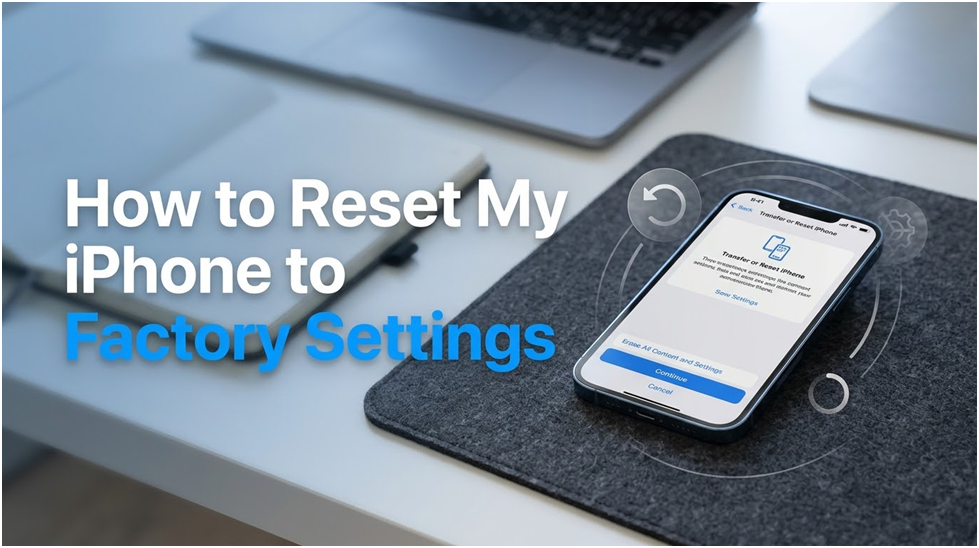
Resetting your iPhone to factory settings is a necessary procedure for several reasons, including resolving recurring problems, getting the device ready for sale, or giving it to someone else. This tutorial offers a thorough guide to help you how to reset my iPhone to factory settings, turn off security features, and return the device to its original condition.
You can ensure your personal information is secure, and the iPhone reset to factory procedure goes well by carefully following the instructions.
Why Is It Necessary to Factory Reset Your iPhone?
To preserve your privacy, you should remove all personal information from your device if you sell or give it away.
A factory reset can help fix software problems on your iPhone.
Additionally, a factory reset can frequently resolve the issue if your iPhone freezes or refuses to restart.
Does a Factory Reset Erase All of Your iPhone’s Data?
Your iPhone’s data and settings are completely erased via a factory reset or hard reset. Photos, videos, contacts, call logs, passwords, messages, browsing history, calendar events, chat history, notes, and installed apps are all included in the reset.
In essence, it thoroughly cleans your iPhone, erasing all personal data and restoring it to a like-new condition.
Before I Reset My iPhone, What Should I Do?
Before resetting your iPhone, follow these five steps to avoid losing data.
- Back up your important data: Make sure that all your vital information, such as contacts, pictures, videos, and app data, is backed up on your iPhone using iCloud or iTunes. This guarantees that, following the reset, your data can be restored to your iPhone.
- Turn off Find My iPhone: To turn off Find My iPhone, go to Settings, then select [Your Name], followed by Find My, and finally Find My iPhone. By doing so, the Activation Lock won’t be activated following the reset.
- Sign out of iCloud and iTunes: To log out of iCloud and iTunes, navigate to Settings > [Your Name] > Sign Out. This guarantees that your iCloud and iTunes accounts are separated from the device, avoiding any problems with data access or activation following the reset.
- Remove your SIM card: After the reset, remove the SIM card from your iPhone to avoid any problems with carrier settings or network connectivity.
- Check other devices connected to your Apple ID: To avoid any issues with app purchases or media access following the reset, be sure to deauthorize any other devices connected to your Apple ID.
Why It’s Important to Back Up Your Data
Making a backup of your data is essential before doing a factory reset. Your iPhone’s contacts, settings, apps, and images will all be deleted after a factory reset. This data will be lost forever if there isn’t a backup. Thankfully, Apple offers two trustworthy ways to protect your data:
iCloud Backup
You may safely keep your data online with Apple’s cloud-based service. Open Settings, tap your name, choose iCloud, then turn on iCloud Backup to make a backup of your iPhone. Before starting the reset, make sure the backup procedure is finished.
Computer Backup
Link your iPhone to a computer if you want offline storage. To make a local backup, use iTunes on Windows or Finder on macOS. If you wish to keep your data without using cloud services, this approach is really helpful.
Important files could be permanently lost if this step is skipped because the reset procedure cannot be undone.
How to Reset an iPhone to Factory Settings
- Select General > Reset after opening Settings.
- Tap “Erase All Content and Settings.”
- To confirm, you may need to input your password, Apple ID, and passcode.
- Tap “Erase iPhone” after following the instructions.
How to Restore Factory Settings on Your iPhone Without a Passcode
Have you forgotten the passcode on your iPhone? We are all affected by it. But keep in mind that your device will be disabled and require a factory reset to unlock if you enter the incorrect passcode too frequently.
Here are some recommendations for iPhone 8 and later devices.
Resetting a Locked iPhone
- Make sure your iPhone is off.
- Use a USB cord to link your iPhone to a computer.
- After pressing and releasing the Volume Up button, press and release the Volume Down button. Next, hold down the Side (or Power) button until the Recovery Mode screen shows up.
- Open iTunes (on Windows or earlier macOS versions) or Finder (on macOS Catalina and later), depending on your computer.
- On your computer, locate your device. Select the Restore option if the iPhone is asked to be updated or restored.
- Choose a Restore once more to confirm the action.
- Keep your iPhone connected to the computer until the procedure is finished.
You should be able to recover your data if you created a backup of your iPhone prior to being locked out. However, your data won’t be preserved if you don’t make a backup of your phone.
What to Anticipate Following the Reset
Your iPhone will show the “Hello” screen after the reset is finished, signifying that its factory settings have been restored. The device is now prepared for setup or transfer to a new owner.
You can do any of the following, depending on your goals:
If You Intend to Keep the Device
To recover your data from an iCloud or computer backup, adhere to the on-screen directions. You’ll be able to use your iPhone again with all your old data and settings.
If the Device Is Being Sold or Given Away
Make sure there are no Activation Lock problems when the new owner accesses the setup procedure. Verify that the device is no longer connected to your Apple ID and that all security features have been turned off.
Crucial Elements of a Successful Reset
To guarantee a successful and seamless reset procedure, bear the following in mind:
- Make a backup: Make sure you have all the essential backups before moving further because a factory reset is irreversible.
- Take out the eSIM: If you are transferring ownership, the new user won’t be able to access your cellular plan if you delete the eSIM.
- Turn off security features: Turning off features like Find My iPhone is necessary to prevent setup issues.
You may confidently reset your iPhone by following these instructions. This instruction guarantees that your data is safe, and the device is prepared for its future use, whether you are troubleshooting, upgrading, or giving it to someone else.
Examine further articles and tutorials from our extensive collection that might be relevant to your interests in resetting your iPhone.
FAQ’s
If I Reset My iPhone, Would My Photos and Movies Be Lost?
Yes, all your iPhone’s content—including pictures and videos—will be deleted if you conduct a factory reset. The device will be returned to its initial factory configuration, just as it was upon initial unboxing.
Will the Operating System Be Erased Using “Erase All Content”?
No, choosing “Erase All Content” will wipe your settings, programs, and personal information but not the operating system. The iPhone will be returned to its original state, keeping the pre-loaded apps and the installed version of iOS.
How Can an iPhone 15 or Older Be Factory Reset?
The reset procedure is the same for all iPhone models. Although menu wording may differ slightly, you can adhere to the basic procedures:
- Navigate to “Settings.”
- Press “General.”
- Choose “Reset iPhone” by scrolling down.
- Select “Erase All Content and Settings.”
- To finish the reset, adhere to the instructions.
How Do I Force Restart, or Hard Reset, an iPhone?
When your iPhone is stuck or unresponsive, you should do a hard reset, often known as a force restart. Here’s how:
- Quickly press and release the Volume Up button.
- Press and quickly release the Volume Down button.
- Hold down the Side (Power/Lock) button until the Apple logo appears.
If My iPhone Won’t Power On, How Can I Factory Reset It?
Try the following if your iPhone won’t turn on:
- Press and hold the Side button for 15 seconds after entering Recovery Mode and press and release the Volume Up and Volume Down buttons.
- Use a USB connection to link your iPhone to a Mac.
- Check to see if the device can be found by opening Finder.
- Click “Restore iPhone” after selecting the device if it shows up. The most recent iOS version will be downloaded and installed on your Mac.
If you can’t locate your iPhone, there can be a hardware problem. For a diagnosis, we advise taking it to an Apple Authorized Service Provider.
The Screen on My iPhone Is Broken. How Do I Reset It to Factory Settings?
If the device still turns on even when the screen is broken:
- Press and hold the Side button for 15 seconds after entering Recovery Mode and press and release the Volume Up and Volume Down buttons.
- Link your Mac to your iPhone.
- Launch Finder and choose the iPhone if it shows up.
Select “Restore iPhone.” The device will be erased, and the most recent iOS will be installed on your Mac.

Exploring the Steam Deck GPU: Performance and Graphics Card Equivalent

No Signal to Monitor: Troubleshooting Guide

What Motherboard do I have? Find out Now
About Author
