How to Clear Browser Cache on iPad: Complete Guide
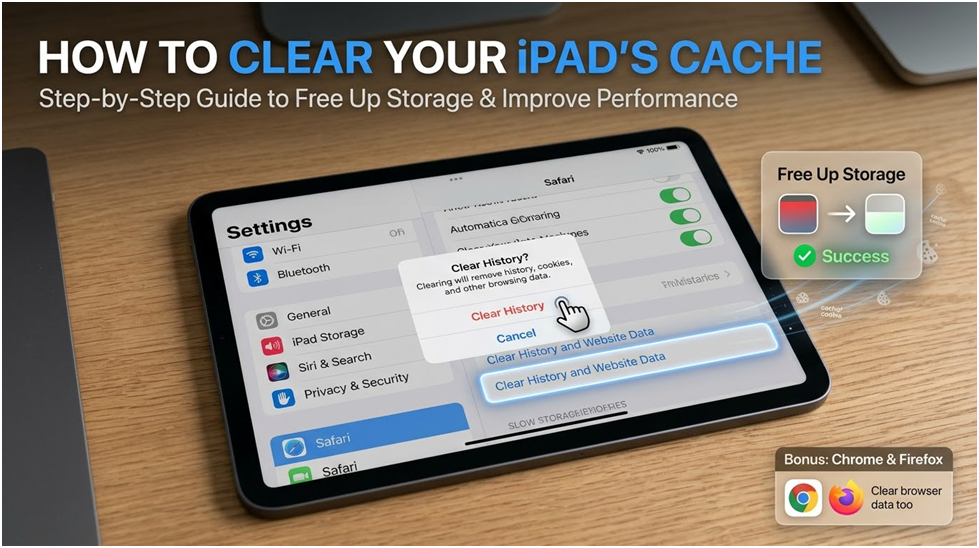
Your device cache is a fantastic place where you can store different kinds of data that you have used during your activities. Internet cookies, site data, app data, photos, and other items that help speed up loading times by providing your device with quicker access to previously encountered data are examples of this information. Here are complete details on how to clear the browser cache on an iPad.
This may seem like a fantastic deal, and it does have some benefits, but it does use some memory on your device. Your cache grows in size as you acquire more information. Your device will become slower or less reliable, the more cache it accumulates.
It could be time to empty the cache if you observe that your iPad becomes slower, lags a bit more, and occasionally does not obey your orders. You might try resolving other issues before deleting any data, though, as there could be several other reasons why your iPad is acting strangely.
How Can You Speed Up and Clean Up Your iPad?
We understand that keeping the iPad’s cache can be quite practical. If you want to keep your device, here are some things you can do before erasing anything.
Other methods to tidy up and speed up your iPad, besides deleting cached data, are as follows:
Remove Unused Applications
iOS devices come with a useful tool called the Offload Unused Apps function. Apps that you don’t use frequently or at all will be immediately removed when you use this function. The app offload list does not clearly specify how long you must go without using it.
Using the offload option lets the apps remain on your home screen and in your app library, which is different from uninstalling them. Additionally, offloading does not remove any data or documents associated with the application. A tiny cloud icon ultimately shows up next to the app icon. This implies that your iPad will begin downloading the application automatically the next time you press the symbol.
To enable this option, navigate to “Settings,” select “App Store,” and then toggle “Offload Unused Apps.”
Go to “Settings,” “General,” and then “iPad Storage” to confirm the exact amount of storage space that this feature frees you. The amount of space you can free up by turning on the feature should be shown in a section beneath the graph.
Offloading Apps Has Two Drawbacks
There are two things to think about before you tap “Offload Apps,” even though the feature seems like a fantastic substitute for erasing the apps entirely.
The first drawback is that deprecated apps cannot be downloaded.
Even if they might be useful, some apps are quickly removed from the App Store. You won’t be able to download this app again because it was removed from the App Store if it is offloaded during the automatic shrinking.
It is advised to avoid using the Offload option if you need to preserve older apps.
Drawback #2: Unique Applications
Certain apps on our phones only receive attention when we are in unusual circumstances or places. If you’re in a place with little coverage (like a hiking trail), it would be very inconvenient not to have the app available when you need it.
Manually Offloading Apps
If the drawbacks are too much for you, you can still maximise this functionality by manually offloading apps. Just go to “Settings,” click “General,” and choose “iPad Storage.”
Once there, just pick “Offload App” after choosing the app you wish to offload.
Delete Apps Permanently
Do you want to keep the program icons visible and avoid the hassles of offloading? Instead, you can choose to remove certain apps completely. The “iPad Storage” tab contains a list of apps that are available to you. Conveniently, this list is arranged based on the amount of space it takes up on your iPad.
Just click the “Delete App” button, which is situated beneath the “Offload” option, if you find the program you wish to remove.
How Can I Empty My iPad’s Cache?
If you’ve decided to simply empty the cache, all you need to do is navigate to your preferred search engine via the iPad’s settings and select “Clear History and Website Data.”
However, the procedure may alter slightly depending on the search engine you have selected.
How to Empty Safari’s Cache
Safari is a time-saver because it allows you to easily remove your search history, cookies, and cache all at once if you’d like! But because we’re only talking about clearing the cache, here’s how to do it step by step:
Step 1: Locate “Safari” by scrolling down in the “Settings” section of your iPad. Once you see the “Clear History and Website Data” button, click on it and scroll down once more.
Step 2: After selecting it, confirm the action by selecting “Clear” in the pop-up window.
How to Empty Google Chrome’s Cache
When it comes to cleaning your cache, Chrome gives you more alternatives than Safari.
Step 1: Press the three horizontal dots in the screen’s upper-right corner. Next, you should select “Settings.”
Step 2: Choose “Privacy” after scrolling down to that point.
Step 3: Click “Clear Browsing Data.”
Step 4: Leave everything else unchecked and tap “Cached Images and Files.”
Step 5: After that has been cleared, please click “Clear Browsing Data,” then tap it once again to be certain.
How to Empty Firefox’s Cache
You can still clear up your Firefox cache, even though it’s less popular than the first two search engines.
Step 1: Click the three lines (hamburger menu) in the top-right corner of your screen while Firefox is active. Choose “Settings” when the drop-down option appears.
Step 2: Go to “Privacy” and choose “Data Management.”
Step 3: While everything else is turned off, keep the Cache option turned on. To confirm, hit “Clear Private Data” twice here.
How Do I Remove Third-Party Apps from My iPhone’s Cache?
In a similar vein, clearing your iPhone’s cache might help it function more quickly and effectively. The cache is mostly stored in the third-party apps you downloaded, not just your browser. Since the procedure varies depending on the app, you will need to check with the individual apps to resolve the issue.
For instance, to remove the cache for the productivity app “Slack,” navigate to “Settings,” select “Slack,” and then choose “Reset Cache on the Next Launch.” With WhatsApp, you can delete specific conversations from within the app. Just select “Data and Storage Usage” and then “Storage Usage” from the app settings.
You can check the iPhone Storage screen in iOS for help if you have an app that you believe is storing excessive amounts of useless data on your iPhone, and you are unable to discover a viable way to delete its cache.
Step 1: On your device, open “Settings.”
Step 2: Choose “General.”
Step 3: Choose an “iPhone Storage.”
Step 4: Thereafter, a list of all your apps will show up based on their size. The heaviest apps are listed first. You can more accurately determine whether an app is eating up too much space on your phone by using this hierarchy.
Step 5: After choosing an app, the interface often displays two options: Delete App or Offload App. You have the option to delete all of your data and documents or to save some.
Note: Do you require some other advice beyond the app size? To view all the “Last Used” dates on the app, scroll down the iPhone Storage list. You should think about throwing it out if you haven’t opened it in at least a month.
You’re Ready!
It’s probably time to fix your iPad and iPhone if, despite cleaning out storage space and erasing the cache, you still find that your gadget is slow or malfunctioning. If not, you are now well on your way to a mobile device that is more effective!

What Exactly Is Microsoft Copilot Logo? An Introduction

Fix Windows Start Menu Not Working (Step-by-Step Guide)

Which Graphic card is best for Laptop: Let’s Compare
About Author
