Fix Windows Start Menu Not Working (Step-by-Step Guide)
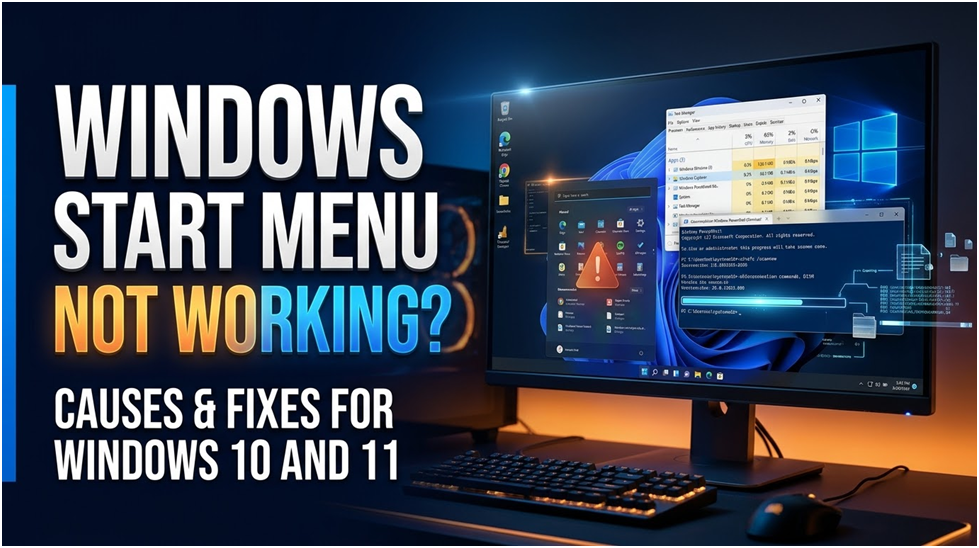
Users frequently experience difficulties when the Start menu stops responding or when they can’t open it, such as when the Windows 10 Start menu or Windows 11 Start menu is not working. Access to installed applications, search capabilities, and basic system navigation may all be impacted by this problem, which might emerge out of the blue.
A key part of Windows Shell, the Start Menu powers the system to search, open apps, and provide access to settings. Users may see a frozen taskbar, an unresponsive Windows key, or a total inability to access system menus when it fails. Sometimes the problem manifests as the Windows Start Menu failing to function, when clicking the Start button yields no response.
System file corruption, background service errors, or conflicts brought on by recent Windows updates are frequently the causes of this issue. Installing third-party software that alters shell components or system behaviour may also cause it.
Even though the problem could appear serious, it is typically software-related and can be resolved without reinstalling Windows. Before using repair techniques, it is crucial to comprehend the underlying reason because different situations call for different fixes.
Test Settings
- Windows 10 Pro (22H2)
- Windows 11 Home (23H2)
- 16GB RAM SSD-based system
- Several background applications (Chrome, OneDrive, Teams)
After the system update simulation, the Start Menu failure was replicated.
Corruption in system files that govern the Windows Shell is one of the most frequent reasons why Windows 10’s Start Menu doesn’t function. System libraries, search services, and UI frameworks are just a few of the background elements that the Start Menu depends on.
The Start Menu may completely stop working when these files are corrupted, which is frequently the result of forced shutdowns, stopped updates, or disk issues. Sometimes the taskbar is still visible, but it stops being interactive, making it hard to use system features.
Related functions, including search, alerts, and access to system settings, may also be impacted by this kind of corruption.
Service Issues with Windows Explorer or Shell Experience
Failure of Windows Explorer or Shell Experience Host is another significant cause of the Windows Start Menu not functioning. The taskbar and Start Menu interface are rendered by these programs.
The Start Menu may freeze or not open if Windows Explorer crashes or stops working. Memory overload, buggy upgrades, or incompatibilities with background apps can all cause this.
Functionality is frequently restored temporarily by restarting Explorer, but persistent failures point to more serious system problems.
Software Conflicts or Recent Updates
Installing third-party software or Windows upgrades may also cause the Start Menu to cease functioning. Some programs interfere with regular shell activities by altering system UI behaviour or injecting background services.
This is particularly frequent following significant Windows feature updates, when incompatibilities between newly installed system components and pre-existing software can cause instability.
In these situations, users may observe that Windows 10’s Start Menu does not function right away after rebooting following an update installation.
Here are some simple fixes for problems with the Windows Start Menu.
Restarting the Windows Explorer Application
Restarting Windows Explorer, which manages the Start Menu, taskbar, and desktop interface, is one of the fastest fixes. The Start Menu may freeze or cease to function when Explorer stops working.
Windows reloads the shell interface by restarting this process using Task Manager, which has no effect on current programs or private data. This frequently instantly restores Start Menu functionality.
This approach is particularly helpful when the problem is brought on by transient system overload or small bugs.
Re-registering Start Menu components can help fix corrupted system UI packages if restarting Explorer doesn’t resolve the problem. PowerShell instructions can be used to reset the built-in application frameworks used by Windows.
This technique repairs broken or missing UI elements and rebuilds Start Menu dependencies. It works very well when damaged system packages are the reason why the Windows Start Menu isn’t functioning.
Changes typically require a system restart once they are executed.
Using DISM Repair Tools and a System File Checker
System-level repair tools like SFC and DISM can be employed if the problem continues. These programs immediately replace any missing or corrupted system files in Windows with new, functional ones.
This is one of the best solutions for Windows 10 Start Menu issues brought on by more serious system corruption.
Both technologies are complementary for complete system repair because SFC verifies local integrity and DISM fixes the system image itself.
The issue is typically deeper inside the Windows Shell architecture when simple solutions, such as restarting Windows Explorer or using system file repair tools, don’t work. Currently, faulty user profiles, broken registry entries, or damaged system component registrations frequently cause Windows Start Menu issues.
Rebuilding the user environment and restoring essential Windows UI dependencies are the main goals of advanced repair. Although these techniques are more potent, they should be used with caution, particularly on systems that have had many crashes or updates.
To Isolate System Corruption, Create a New User Profile
Making a new user profile is one of the best advanced solutions. When the Windows 10 Start Menu doesn’t function, it’s usually a corrupted user profile rather than a system-wide problem.
Windows keeps cache information, shell preferences, and Start Menu settings within each user account. The Start Menu may stop working for that particular user only while other accounts continue to work if this data is corrupted.
Windows creates a clean shell environment and new configuration files when it creates a new user profile. The original user profile is corrupted if the Start Menu functions normally in the new profile.
This technique is especially beneficial when Windows 10’s Start Menu isn’t working under a single account, but the rest of the system is still stable.
Caution: Temporary access confusion may occur if you switch user profiles without first backing up crucial files.
Many features of the Start Menu’s behaviour, such as its layout, permissions, and shell execution pathways, are managed by the Windows registry. The Start Menu may not open or function properly if Windows Shell-related registry entries are damaged.
Issues with the Windows Start Menu not functioning due to deep system misconfiguration can be fixed by restoring or recreating registry-based shell configurations.
Registry alteration should be done carefully, though, as improper changes could result in unstable systems. Most of the time, functionality can be restored by either resetting relevant shell keys or letting Windows rebuild them automatically after a restart.
This approach works particularly well when the problem arises following system adjustments, optimization tools, or partial software uninstallations.
Using In-Place Repair to Rebuild Windows System Components
An in-place Windows repair can be performed if user profile and registry fixes don’t work. This technique restores essential system components without erasing private files or programs.
It successfully rebuilds the Start Menu architecture, Windows Shell, and background services that generate user interfaces. This is one of the most dependable methods for resolving chronic Windows Start Menu malfunctions related to deep system corruption.
This technique replaces damaged system files while maintaining installed software, unlike a complete reset.
Prior to System Repair, Data Preservation and Recovery
Before making significant repairs or reinstallations, it is crucial to safeguard critical files in extreme situations where the Start Menu is totally inaccessible and system instability inhibits normal access.
Users may not be able to access File Explorer regularly if the Windows 10 or Windows 11 Start Menu isn’t working, along with system freezing or login problems.
It is advised to use a recovery environment or connect the disk to another system in these situations. Before carrying out system-level repair or reset procedures, programs like PandaOffice Drecov can scan the impacted drive and retrieve crucial documents, images, and project files.
Step 1: Attach the USB Drive
Launch PandaOffice Drecov after connecting your device (SD card, HDD/SSD, or USB drive) to your PC. After choosing the target device, begin the scan. To find lost or erased data, the program will do both a fast and a thorough scan.
Step 2: Find and Examine Missing Files
After scanning, look through the files that were found and utilize the preview function to see whether any data can be recovered. To verify file integrity prior to recovery, you can preview images, videos, and documents (Word, Excel, and PDF).
Step 3: Restore and Transfer to a New Location
Click “Recover” after choosing the files you wish to restore. To prevent overwriting lost data, save all recovered data to a new drive or location rather than the original device.
FAQs
A faulty AppModel database, a third-party program changing Shell settings, a partial Windows update, or an explorer.exe crash are typical triggers. Most situations can be resolved by restarting Explorer or using the PowerShell re-registration command.
Indeed. Even when clicking doesn’t function, pressing the Windows key frequently does. As alternatives, use Win+I for Settings, Win+E for File Explorer, and Win+R for Run.
Will Any of My Files Be Deleted by the PowerShell Command?
No. Only app manifests are re-registered. Your installed programs, settings, and personal data remain unaffected.
A starting race condition when the AppModel host is unprepared is typically the cause of intermittent failures. This issue is usually fixed by installing pending cumulative updates.
Does Windows 11 Have the Same Issue?
No, the Start Menu component in Windows 11 is entirely different. This guide’s TileDataLayer changes and PowerShell re-registration are particular to Windows 10.
How to Fix Printer Offline: Complete Guide

What Is the Width of a 55 Inch TV? Dimensions and Sizing Guide

Exploring the Steam Deck GPU: Performance and Graphics Card Equivalent
About Author
