Why Is My iCloud Storage Full? A Comprehensive Guide
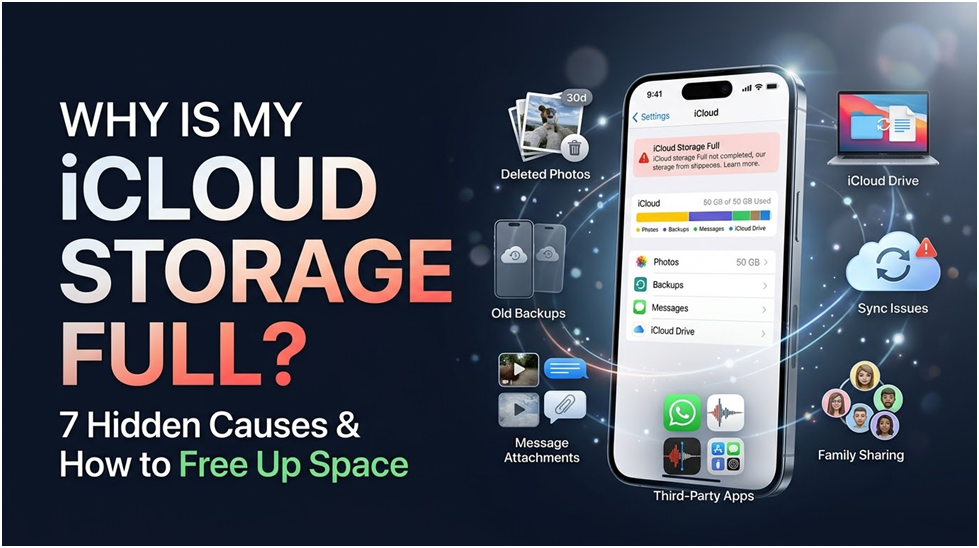
Find out why, despite removing pictures, your iCloud storage is full. A detailed diagnostic guide for resolving sync latency, ghost backups, and recently deleted holds.
Few error messages in consumer technology cause as much confusion and annoyance as Apple’s persistent system alert: “iCloud Storage Almost Full.” When you open iOS Settings and look at the storage breakdown bar, you are left perplexed because you hardly ever take videos, you just spend twenty minutes erasing hundreds of photos, and you only use a few basic apps. Nevertheless, Apple maintains that all five gigabytes of your free storage, or even all fifty gigabytes of your paid plan, are fully used.
Why is the iPhone storage full when I have iCloud, even after data is deleted? What are the unseen data hogs that are secretly using your cloud quota?
We explain the internal workings of Apple’s cloud infrastructure in this thorough diagnostic guide. The 30-day “Recently Deleted” quarantine lock, CloudKit synchronization delays, phantom backups from forgotten previous devices, secret iMessage video caches, and Mac desktop file mirroring are the seven most frequent causes of unexpected iCloud storage exhaustion.
You may pinpoint your precise storage leak and get your cloud quota back to normal by using our interactive troubleshooting flowchart and verification procedures.
Why iCloud Storage Remains Full Even After Deleting Files: A Quick Diagnostic Response
The 30-day quarantine hold, or asynchronous server synchronization lag are two common technological obstacles that you may encounter if you just erased many images, movies, or documents from your iPhone, but your iCloud storage bar remained unchanged.
Apple does not immediately remove data from its cloud servers when you tap the trash can on an image or document on iOS. Instead, to prevent unintentional taps, Apple places the item in a quarantine album called Recently Deleted for precisely 30 days.
Every single picture and 4K movie in your iCloud account continues to use up to 100% of its storage capacity over these 30 days. Your available cloud storage won’t change unless you physically open the Recently Deleted album and select “Delete All.”
Server-side propagation latency is the second cause. Your iPhone transmits a bulk deletion receipt to Apple’s CloudKit servers when you remove thousands of things at once. To preserve battery life, iOS throttles background sync processes whether your iPhone is powered by a battery, in Low Power Mode, or connected to cellular data.
Apple servers typically require 15 to 60 minutes of steady Wi-Fi connectivity to execute the deletion, recalculate your account quota, and update your device’s storage meter.
In addition to photos, accumulated multimedia attachments within the Messages app and secret device backups from outdated hardware are often the sources of unexpected storage exhaustion.
Culprit #1: The 30-Day Storage Lock and the “Recently Deleted” Quarantine Album
The built-in 30-day quarantine architecture of iOS and iPadOS is by far the most frequent cause of consumers reporting that their iCloud storage is full after deleting images.
Apple created the Photos app so that tapping “Delete” merely modifies a metadata marker on the file, moving it out of your primary library view and into the Recently Deleted utility album, protecting users against disastrous unintentional deletions.
Many users believe that the space is immediately released when an image vanishes from their camera roll grid. Apple keeps the high-efficiency JPEG file, Live Photo video component, and full-resolution RAW master in iCloud for 30 days in a row.
The 15 GB of vacation films that you removed on Monday are locked on Apple’s servers until Wednesday of the following month.
How to Instantly Break the 30-Day Lock
- On your iPhone or iPad, launch the built-in Photos app.
- At the bottom of the screen, tap the Albums tab.
- Under the Utilities section, scroll to the bottom of the albums list.
- Select “Recently Deleted.” This album is automatically locked for privacy on iOS 16, 17, and 18 using Face ID, Touch ID, or your device passcode.
- After unlocking, look in the upper-right corner and press Select.
- Tap Delete All (or select certain heavy video clips you wish to remove right away) in the lower-left corner.
- Verify the following prompt: “Delete [X] Photos from All Devices. This action cannot be undone.”
Following confirmation, the files are permanently deleted from Apple’s storage nodes, and the newly freed space is registered in your available iCloud capacity.
Culprit #2: Apple Server Queue Delays and CloudKit Sync Slowness
You may access Settings > [Your Name] > iCloud and discover that the storage bar still displays 49.9 GB of 50 GB even after you have emptied the Recently Deleted album.
Many consumers assume that Apple’s system is broken or that their delete attempt was unsuccessful because of this disparity. You are actually witnessing CloudKit synchronization lag.
For consumer devices, Apple’s cloud infrastructure does not use a synchronous, instantaneous read-write approach. Deletions are instead queued locally as transaction logs.
Apple’s sync daemon, internally referred to as Cloud, combines and pushes requests during planned maintenance cycles to avoid server congestion and preserve iPhone battery life.
This synchronization queue may be paused or delayed by the following environmental factors:
- Low Power Mode: iOS suspends almost all non-essential cloud background updates, including quota recalculations, if your battery symbol is yellow.
- Cellular Data Restrictions: Your iPhone cannot send deletion confirmations to Apple servers if you are not connected to Wi-Fi and have “Cellular Data” turned off for iCloud Photos or iCloud Drive.
- Photos Sync Paused State: The Photos app will automatically show the status message “Syncing with iCloud Paused to Save Battery” at the bottom of your library if your iPhone is overheating or has a low battery.
How to Force a CloudKit Storage Refresh
- Connect to a reputable, quick Wi-Fi network and plug your iPhone into an authorized wall charger.
- Make sure Low Power Mode is turned off under Settings > Battery.
- Launch the Photos app, select the library tab, select All Photos, and then scroll all the way to the bottom.
- Tap Resume immediately beneath the status text if “Syncing Paused” appears.
- Give the phone 15 to 30 minutes to remain locked and linked to Wi-Fi.
- Alternatively, you can check your storage capacity by opening Safari on any computer and logging into iCloud.com. By directly reflecting Apple’s core database, the web interface avoids any latency caused by mobile caching.
Culprit #3: Ghost Backups from Apple Devices That Have Been Retired, Traded In, or Broken
A ghost device backup is most likely the cause if you have very few images on your phone, but your 5 GB or 50 GB plan is fully utilized.
Apple automatically turns on iCloud Backup when you set up an iPhone or iPad. Device settings, Wi-Fi passwords, home screen layouts, message histories, app setups, and health data are all captured in a typical device backup, which can take up to 12 GB per device.
Importantly, Apple does not replace the old backup when you switch to a new phone and move your data. The backup of the old phone is still stored as a static historical snapshot on Apple’s cloud servers.
As an example, let’s say you had an iPhone 11 (backup size: 4.8 GB), updated to an iPhone 13 (backup size: 5.2 GB), and currently own an iPhone 15 (backup size: 6.1 GB).
Your iCloud account is holding 10 GB of worthless ghost backups for devices you sold or exchanged years ago if you have never manually cleared up your older archives!
How to Remove and Audit Ghost Backups
- On your iPad or iPhone, open Settings.
- After tapping the Apple Account banner at the top, select iCloud.
- Select Backups after selecting Manage Account Storage (or Manage Storage).
- Examine the devices listed in the Backups header.
- This iPhone will be displayed as your current active device. Ghost backups are any other entries that display earlier dates or obsolete models.
- Select an outdated device backup by tapping on it, then scroll to the bottom and select Delete & Turn Off Backup.
- Verify the deletion. The full multi-gigabyte backup instantly disappears, giving your active phone back essential space.
Culprit #4: Neglected 4K Video Attachments and Concealed iMessage Media
Because text messages are little character strings that take up very little space, users often ignore the Messages app while auditing their iCloud storage. On the other hand, all the media associated with those texts is stored in your cloud quota if Messages in iCloud is enabled.
People frequently share in contemporary group chats, family threads, and friend conversations:
- 10-second 4K/60fps video clips (50 MB to 150 MB each) from family gatherings or concerts.
- High-quality screen captures (25 MB to 80 MB apiece) showing phone settings.
- Voice audio notes, meme stickers, and animated GIFs.
- Scanned PDF tickets and receipts.
Your Messages database can easily grow to 15 GB, 25 GB, or even 40 GB without a single photo showing up on your camera roll if you have been messaging on an iPhone for three to five years!
- Navigate to Settings > General > iPhone Storage.
- After navigating through the list of apps, select Messages.
- Select Videos from the Documents & Data breakdown.
- Every video that iOS has ever received in Messages is rigorously sorted by file size, with the larger files at the top of the list.
- Select outdated video clips by tapping Edit, then hit the trash symbol.
- For large attachments and photos, repeat these steps.
- Go to Settings > Messages > Keep Messages and adjust the retention duration from Forever to 1 Year to avoid bloating in the future. After 365 days, the system automatically removes outdated attachments while preserving fresh exchanges.
Culprit #5: iCloud Drive’s “Desktop and Documents” Automatic Mac Synchronization
If you have an iPhone and a MacBook Air, MacBook Pro, or desktop Mac, your Mac may be stealing all of your iCloud storage space without your knowledge.
Apple invites you to “Keep all your files in iCloud Drive” on a setup screen that appears during macOS setup or system updates. Clicking “Continue” brings up the Desktop & Documents Folders feature in macOS.
When this function is activated:
- All of the files, folders, screenshots, screen recordings, and projects that are stored on your Mac desktop are automatically synchronized with iCloud Drive.
- All of the files in the native Documents folder on your Mac are mirrored to iCloud Drive.
When you download a 4 GB macOS installer (.dmg file), save a 6 GB Final Cut Pro movie draft, or extract a large ZIP file from your Mac desktop, the file is promptly posted to your iCloud account, depleting your cloud allowance and causing your iPhone’s backups to freeze!
How to Check and Manage Desktop Synchronization on a Mac
- To access System Settings on your Mac, select the Apple menu ().
- Click the name of your Apple account, then select iCloud and iCloud Drive.
- Examine the Desktop & Documents Folders toggle.
- Open Finder, select iCloud Drive in the sidebar, and check the sizes of your Desktop and Documents folders if this toggle is turned on and your iCloud storage is full.
Your local desktop appears empty if you turn this toggle off, but your files are still securely stored on iCloud Drive. Drag your Desktop and Documents files back to your local Mac home directory after opening Finder > iCloud Drive. This rapidly frees up gigabytes of online storage while maintaining file accessibility on your Mac.
Many third-party iOS apps, in addition to Apple’s essential system apps, keep private storage sandboxes within your iCloud account. These app sandboxes use storage without showing up in your Files app or camera roll while running quietly in the background.
Backups of WhatsApp Chats
One of the biggest users of hidden iCloud storage worldwide is WhatsApp. By default, WhatsApp keeps a separate cloud backup container within iCloud. One WhatsApp backup can take up 8 GB to 20 GB of cloud space if you regularly share videos in active chat groups.
- Select Settings > Chats > Chat Backup when WhatsApp is open.
- Examine the displayed total backup size.
- Turn off included videos if WhatsApp takes up quite a lot of space. Usually, videos posted on WhatsApp are compressed memes that don’t require archiving in your cloud capacity. This one modification frequently reduces the size of WhatsApp backups by half.
Caches for Creative Apps with High Overhead
Complete project databases are regularly backed up to iCloud by programs like CapCut, LumaFusion, Procreate, GoodNotes, and document scanning apps.
- Go to Settings > [Your Name] > iCloud > Manage Account Storage.
- Beneath the Backups section, browse the alphabetical list of third-party programs.
- Check for any application using more than 500 MB. Examine the app’s data footprint by tapping it. To permanently recover the trapped storage if you are no longer using that application, select Delete Documents & Data.
Voice Memos That Have Been Forgotten
High-quality audio recordings are synchronized between devices via iCloud using the native Voice Memos app. If you record lectures, music rehearsals, or meetings lasting an hour, those audio recordings stay in iCloud forever.
To make room, open the Voice Memos app, go over previous recordings, remove unnecessary audio files, and empty the Recently Deleted folder.
If you and your family members have an iCloud+ Family Sharing subscription (usually the 200 GB or 2 TB tier), you can experience an unforeseen storage crisis where your account indicates “Storage Full” even though your personal photo collection only utilizes 15 GB.
Up to six family members can access the whole storage capacity in a single shared bucket thanks to Apple’s Family Sharing design. Per-user storage quotas are not enforced by Apple, though. A family organizer cannot limit one adolescent to 25 GB while allocating 100 GB for parents on iOS.
Because of this limitation, a single family member can silently use 160 GB of a 200 GB family plan if they start recording high-resolution 4K/60 fps video, install sophisticated video editing software, or synchronize an entire MacBook photo library, depriving everyone else of backup space.
How to Examine the Storage Usage of Family Sharing
- On your iPhone, open Settings.
- After tapping the name of your Apple Account, select Family Sharing.
- After selecting Subscriptions, select iCloud+ (or navigate to Settings > [Your Name] > iCloud > Manage Storage.
- Each family member’s precise gigabyte usage is displayed by Apple through a transparent breakdown bar.
- Determine who is using the disproportionate amount of data.
- Thereafter, the heavy user needs to unlock their device and follow this guide’s instructions for backup pruning or photo unloading. Family organizers are unable to view or remove the images or files of another family member due to Apple’s stringent end-to-end privacy restrictions; each person must clean up their device.
If your family’s storage needs to surpass 200 GB, you have two options: either upgrade to the 2 TB plan ($9.99/month) or have each member quit the family storage pool to buy a separate 50 GB plan for just $0.99 per month.
Full Diagnostic Wizard and Troubleshooting Decision Tree for Interactive iCloud Storage
Use the interactive diagnostic process below from Navorika to determine the precise root cause that is currently affecting your device. Choose your symptoms from the left column to get an instant, step-by-step resolution plan and uncover the underlying technological mechanism.
As you apply each fix on your Mac, iPad, or iPhone, use the interactive checkboxes to monitor your progress.
What Happens If Your iCloud Storage Remains Completely Full?
Apple notifies you via automated emails and warning banners that your account is over quota when your iCloud storage exceeds its maximum capacity. However, what are the consequences if you choose to ignore these warnings and opt not to purchase additional storage?
Myth and reality must be kept apart. The precise technical explanation of what occurs and what does not occur when iCloud storage is full is as follows:
What Continues to Function Normally (Safely)
- Local phone functions: You can still make calls, access the internet, send SMS texts, and use loaded apps on your actual iPhone.
- Taking local photos: You can keep using your camera to take pictures and make videos. If your local iPhone storage is not full, the files will save the local flash memory of your phone as usual.
- Current cloud data: Just because your storage is full doesn’t mean Apple will instantly remove your contacts, notes, or photographs. Your current info is still securely stored on Apple servers.
What Stops Working Right Away (Paused Services)
- Automated nightly backups: Your iPad and iPhone will no longer make daily disaster recovery backups. You won’t have a cloud snapshot to restore your phone if it gets lost, stolen, or submerged in water while backups are halted.
- Synchronization of photos: New images taken on your iPhone won’t sync to iCloud.com, your Mac, or your iPad. Until storage is released, they stay stuck on your local phone hardware.
- iCloud Mail: When you utilize an @icloud.com email address, inbound emails will be rejected and returned to the sender with an “Over Quota” error number. Emails sent during the outage won’t reach you.
- iCloud Drive file sync: When documents are modified in Pages, Numbers, Keynote, or other cloud apps, the syncing across devices will be halted, leading to file version conflicts.
- Messages in iCloud sync: Secondary iPads and Mac computers will no longer be able to synchronize new text messages and attachments.
Because you lose your automated backup safety net, leaving your iCloud storage at 100% capacity for a long time puts your data at considerable risk. We strongly advise taking the free cleanup steps in this guide to resolve the blockage within 48 hours.
Sometimes consumers perform a thorough cleansing, empty Recently Deleted, and confirm that their files are no longer there, but their iPhone stubbornly keeps showing the yellow “iCloud Storage Almost Full” warning label in Settings.
A stale local cache on iOS is the reason for this false positive. To reset your device’s cache and make your iPhone request a new storage calculation from Apple servers, follow these five steps:
- Close the Settings app by force. To access the app switcher, swipe up from the bottom of your screen. To fully close the Settings card, swipe it up and off the screen.
- Toggle iCloud Drive synchronization. Go to Settings > [Your Name] > iCloud > iCloud Drive to turn iCloud Drive on or off. Turn this iPhone’s synchronization off, wait 15 seconds, and then turn it back on. The CloudSync daemon is forced to re-handshake with Apple servers as a result.
- Check the storage status on iCloud.com. Open a computer’s Safari or Chrome browser, go to iCloud.com, and log in. You may be certain that your cloud account is clean and that the alert on your phone is only a cache display issue if iCloud.com shows healthy available storage.
- Check your Wi-Fi and power connection. Attach your iPhone to its charger and establish a Wi-Fi connection. Make sure Low Power Mode is turned off. During active charging cycles, iOS assigns background sync verification top priority.
Force restarts your iPhone. Try a complete reset if the badge still appears after 30 minutes. On contemporary iPhones (iPhone 8 through iPhone 16), press and immediately release the volume up and down buttons, then press and hold the side button (power) until the Apple logo displays on the screen. The stale warning banner is permanently removed when the phone restarts since iOS rebuilds its local preference cache.

The Evolution of Design: From Bezels to Bezel-Less in Technology

Unmasking the Truth: Are Motherboard Screws Universal?

What is Nvidia DLSS? A Revolutionary Gaming Feature
About Author
