Sleep Settings iPhone: Everything You Need to Know
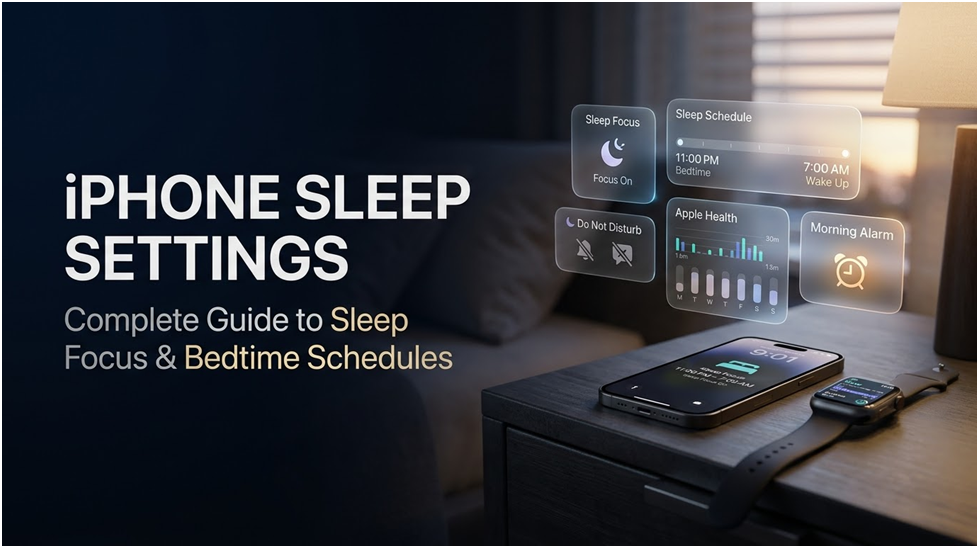
A healthy body and a clear head depend on getting enough sleep. You can use your iPhone to set your morning alarm, turn on Do Not Disturb to reduce distractions, and even dim the bright display when getting ready for bed. The iPhone’s Sleep mode handles these same nightly tasks by combining the Sleep Schedule and Sleep Focus.
You may create a sleep plan and minimise distractions before and during slumber with Apple’s Sleep mode, also known as Sleep Focus. Along with some extra settings related to your sleeping patterns, it offers all the functions of a concentration mode. For example, an iPhone’s Sleep Focus feature can filter out calls and notifications and even let others know that you’re not available.
To activate Sleep Focus before bedtime, you can also specify a wind-down time. It might be between fifteen minutes and three hours before bedtime. Your iPhone will display a sleep-specific home screen after you’ve turned on Sleep Focus. When your Sleep Focus is over, you will instantly return to your normal home screen.
You can manually switch the focus on and off or create a routine to help you fall asleep.
From turning off notifications to activating sleep detection with your Apple Watch, the iPhone’s Sleep mode offers a plethora of functions that can improve your quality of sleep. This tutorial explains how to use its functions to their fullest and how to turn it on and off.
Why Is There a Sleep Mode on the iPhone?
The iPhone’s Sleep mode, which is a Sleep Focus, includes all the characteristics of a Focus mode along with a few unique aspects related to sleeping patterns.
Any Focus mode can be used to:
Silence Notifications
If someone tries to text you, you can choose to reply, “Beth has notifications silenced.”
Allow Certain Alerts to Pass Through
If someone keeps trying to call you, you can let them through.
Modify Your Lock Screen and Home Screen
Focus modes have many wonderful applications, and we’ve included a guide to their best features below. For instance, you can customise your home screen so that your music and meditation apps stay there while work-related apps are removed. Your phone will switch to displaying your sleep-specific home screen when it’s time for bed. In the morning, the standard home screen will reappear.
Along with those characteristics, Sleep Focus also:
- Allows your Apple Watch to detect sleep if you fall asleep during this period.
- Sets an optional alarm to sound when Sleep Focus ends.
How to Tailor Your iPhone’s Sleep Focus
Go to Sleep settings on the iPhone and then Focus to configure the screens and alerts you will see while in Sleep mode. From here, select Sleep (or, if you don’t currently have a Sleep Focus, touch the + to create one). Select your home screen, notification settings, and any other customisations you want to make.
How to Use Your iPhone to Create a Sleep Focus Schedule
The goal of Sleep Focus is to be used on a regular basis. Sleep Focus will automatically turn on and off based on the timetable.
Go to the Health app, select Sleep, and then scroll to the bottom where “Your Schedule” appears to establish the timetable. You can introduce changes to your schedule under Full Schedule & Options. Every day of the week can have a different bedtime and wake-up time.
Additionally, you can toggle “Use Schedule for Sleep Focus” on this page, which instructs the phone to activate Sleep Focus during your designated sleep periods. Go to the bottom of this screen and, if you’d like, establish your sleep goal, sleep outcomes, and bedtime reminder.
How to Activate Your iPhone’s Sleep Focus
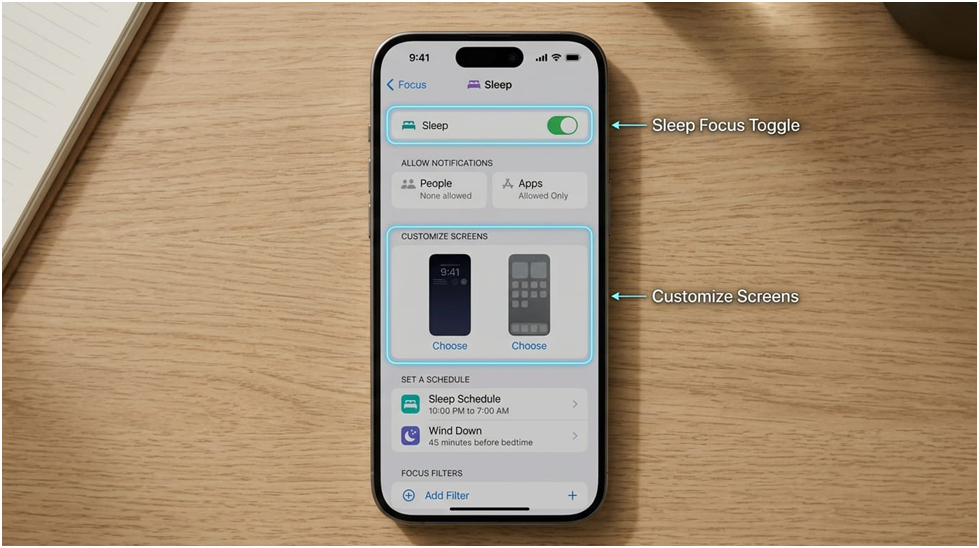
You can activate Sleep mode at any time after setting it up, regardless of whether you have a sleep schedule or not. Simply swipe down from the upper-right corner of your phone to access Control Center, then select Focus. It will have a moon icon if there is no Focus.
Now you can select which Focus mode to activate. Sleep ought to be on the list. You can enter Sleep mode by tapping it.
How to Switch Off Your Sleep Focus
Getting up early? Sleep Focus can be turned off at any moment. Navigate to Control Center (swipe down from the upper-right corner of your phone) and look for the “Sleep: On” button. You can select a new Focus here, such as Do Not Disturb or any other Focus you’ve made. Simply tap the Sleep Focus to switch off Sleep mode without entering a new Focus.
Tap the three dots on the Sleep mode button to disable or change the sleep schedule going forward. You can modify or turn off your sleep schedule by tapping Settings on your iPhone.
Would It Be Possible to Put an iPhone in Sleep Mode Using an Apple Watch?
You can switch Sleep Mode on and off right from your Apple Watch if you wear it to bed.
Here’s how to use an Apple Watch to switch your iPhone to Sleep mode:
- On your watch, open the Control Centre.
- Press the Focus button.
- If a bed icon appears on a previous version of watchOS, tap it instead.
- Press the Sleep button.
Sleep Mode will be activated on your iPhone.
FAQs
What Is the iPhone’s Sleep Mode?
Apple’s three sleep-related features are Wind Down (a pre-bed buffer that initiates Sleep Focus early), Sleep Schedule (bedtime/wake time in the health app), and Sleep Focus (which mutes notifications and dims on the lock screen).
How Can I Turn Off My iPhone’s Sleep Mode?
For a short while, select Control Center → Focus → Sleep. To turn off the Sleep Schedule permanently, go to the health app, select Browse, then Sleep, and finally choose Full Schedule & Options.
Does My Alarm Go Off in Sleep Mode?
No, Sleep Focus and all other Focus modes are superseded by Clock alarms and the Sleep wake-up alarm. The Ringer and Alerts volume, or Attention Aware Features, is typically the cause if your alarm was silent.
My iPhone Dims Itself at Night; Why Is That?
Typically, the lock screen of Sleep Focus is simplified. Check Night Shift, True Tone/Auto-Brightness, and Stand. It still occurs after turning off the Sleep Focus.
What Distinguishes Do Not Disturb from Sleep Mode?
Both of these Focus modes turn off alerts. DND is a general-purpose, manually managed mode; Sleep Focus is linked to your sleep pattern, aggressively dims the lock screen, and connects with health sleep tracking.
In Conclusion
For anyone wishing to enhance their bedtime routine and sleep hygiene, Sleep Focus on iPhone is an effective tool. Sleep Focus makes it simpler to maintain a healthy sleep routine by automatically turning off your phone at bedtime, screening out non-urgent notifications, and integrating with the health app and Apple Watch. This feature makes your iPhone an ally for better sleep in a world where our gadgets frequently cause restless nights. Apple has developed Sleep Focus into a comprehensive solution that encourages you to wind down, gives you control over who or what can reach you after hours, and gently eases you into a healthy sleep routine following its successful launch on iOS. It continuously monitors your advancement toward your sleep objectives. Sleep Focus may help put your health first by making sure your iPhone promotes sleep rather than interferes with it, whether you’re a busy professional, a student, or just someone who values their sleep.

Unlocking the Mystery: What Does GPU Do

What Exactly Is Microsoft Copilot Logo? An Introduction

How to Measure Monitor Size: A Step-by-Step Guide
About Author
