How to Fix Printer Offline: Complete Guide
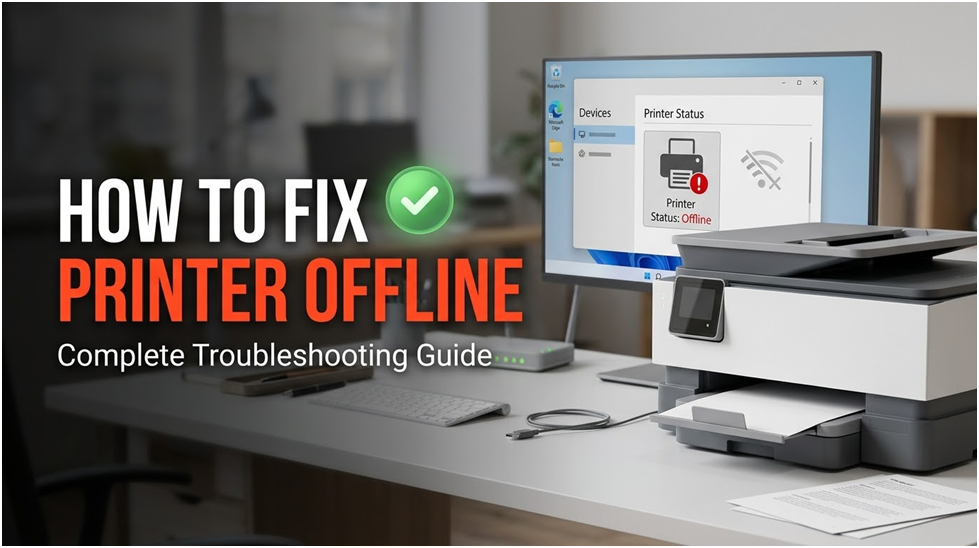
Many users face the “Printer Offline” issue while using a printer, which may hamper workflow and business. It can be frustrating when your printer is on and ready to print, but it is showing offline in your settings. It’s the printer function, that’s the problem. This article offers some guidelines to understand the root causes of the problem and how to fix it.
Common Reasons for a “Printer Offline” Status
There may be several reasons a printer shows offline but first identify the main cause of the issue. Here are some reasons to help you find the real cause of the problem.
Physical Connection Issues
First off, make sure your printer is offline but is connected. Ensure the printer is plugged into a power cable and plugged into a working outlet. Verify that the Ethernet or USB cable is connected to the switch. Try alternative connections or replace ports and cables.
Wireless Network Connection
If you have wireless printers, the most important thing is to have a stable network for them. Ensure the printer is connected to a stable network. You need to connect your printer and computer to the same Wi-Fi, not different from Wi-Fi. Because of this issue, your printer may not be able to print.
Moreover, if you have recently changed your Wi-Fi password, then the printer may also need to be configured with the new password. Connectivity is also affected by the distance between the wireless router and the printer. Your printer may show offline status due to poor connectivity.
Network Infrastructure Problems
Printers may look unavailable in networked printing settings due to network congestion or sporadic outages. Restarting the wireless router can frequently resolve transient network issues, but before you do, be sure your inability to print isn’t a unique problem by asking some of your coworkers.
Printer Configuration Settings
Offline status may be the result of using incorrect printer settings. Inadvertently, you may have enabled the “Use printer offline” mode, which could lead to this issue.
If you are using corrupted, outdated, or incompatible printer drivers, then it will also cause a communication gap between the printer and computer. It might lead to the printer going offline. Driver-related problems may happen often due to operating systems.
IP Address Conflicts
Within the same network connectivity, if two or more devices are assigned to the same IP address, then it will lead to a printer offline issue.
Print Spooler Service
On the computer, the Print Spooler service handles printing jobs. If the error is related to the Print Spooler service, then it will stop working and be overloaded by many print jobs in a row. Due to the overload, the printer shows offline status.
The Most Common “Printer Offline” Fixes: What to Check First
You can resolve the issue of the printer offline by running a troubleshooting method; below are some easy steps that might help you to solve this problem.
Make Sure Your Printer Is Turned On
Before troubleshooting, check that your printer is plugged in and on. Your printer may be in sleep mode; you need to wake it up by pressing a button.
Restart Your Printer
Your printer needs to restart after it shows offline, even though it is already on. You can follow these steps to restart your printer.
- Unplug your printer from the power source for 30 seconds and turn it off. This will reboot your printer and reconnect it to the PC.
- Now turn on your printer again, and check whether it is still showing offline status or not.
Make Sure There Is Paper in the Printer Tray
Verify that the printer tray is filled with paper. If there is no paper available for printing, some printers can appear to be offline.
Empty the Print Queue
One by one, cancel any print jobs that are stuck. Sometimes your printer won’t come back up due to a blocked print queue.
To restart the Print Spooler service, follow these steps:
- To launch the search bar and enter Services, press Win + S.
- In the search results, select Services.
- Right-click the Print Spooler service after scrolling down.
- Press Restart. This will allow the computer to find the printer again by restarting the printer dialog.
- Check to see if your printer is visible online after a few minutes. You will have to wait a few minutes before your PC detects the printer because it takes a bit for the Print Spooler service to restart.
Remove the Device
Choose a Remove Device after clicking on the printer’s name. This step will remove the printer drivers, so you may re-add them if clearing the queue didn’t work.
Set Your Printer as the Default
If the issue persists, you should try choosing your printer as the default.
You can perform these steps:
- Select Printers & Scanners from the menu.
- Choose your printer as the default printer.
- Select Open Queue.
- A printer from the queue that is marked as “Set as default” will be displayed as the default printer.
When Getting a New Printer Would Be a Better Option
If a printer is many years old and consistently goes down despite all the previous steps, the Wi-Fi module inside it might just be malfunctioning. There is no software solution that will permanently address that hardware issue.
At that point, replacing an outdated printer is frequently less expensive over time than continuing troubleshooting, particularly if you’re also replenishing ink or toner on a slow and unreliable machine.
Uncommon “Printer Offline” Situations That Need Expert Assistance
In most cases, the troubleshooting methods should resolve the problem, but don’t rule out the need to upgrade your printer. Deeper fixes are sometimes necessary, though.
For instance, if you’ve carefully followed all the basic and advanced troubleshooting procedures and your printer is still not working, this may be a sign of a more complicated hardware malfunction or a difficult-to-diagnose configuration problem.
Similarly, if your printer frequently shows error codes or warning lights that indicate internal issues, it may indicate software problems or failing parts that need to be fixed by a specialist.
It is now advisable to speak with IT support or a trained printer repair specialist. They may inspect physical components, carry out in-depth diagnostics, and implement specialized remedies that go beyond basic troubleshooting.
Network experts may also be required to examine the entire infrastructure for possible conflicts or more serious systemic problems if your printer is part of a bigger network, and several devices are impacted.
Frequently Asked Questions (FAQs)
Why Does My Printer Occasionally Go Offline?
Typically, this is due to a printer’s power-saving mode that disconnects the network connection while it is idle or a spotty Wi-Fi signal. In addition to the Wi-Fi instructions above, check the printer’s sleep or power-save settings.
How Do I Get My Printer Back Online?
Open the print queue for your printer in Windows. Select Printer from the menu and uncheck Use Printer Offline if it is checked. In a few seconds, the printer ought to appear as ready.
Why Does My Printer Remain Connected to Wi-Fi Even Though It Is Offline?
A live Wi-Fi connection does not rule out other factors. Even when the printer is online and reachable, an outdated driver, a stopped Print Spooler service, or a stalled print queue might all cause an offline warning.
Can I Fix a Printer Offline Error by Restarting My Router?
Often, it does, especially if the printer has just been reconnected following a power outage, or if lots of networked devices are acting up too. Before attempting to print, restart the router and printer together and give them a minute to reconnect.
After a Windows Update, Why Did My Printer Go Offline?
Windows updates occasionally alter the default printer settings without the user’s consent or swap out a functional driver for a generic one. This is typically resolved by reinstalling the manufacturer’s driver instead of using the one provided by Windows.
Can a Printer Appear to Be Offline Due to Low Ink or Toner?
When a cartridge is empty, or a toner cartridge must be changed, some printers reject new tasks; some indicate the issue as an offline or unavailable status instead of a clear low-ink notice.
Before thinking about a connectivity issue, check out the printer’s own display or application. To discover the appropriate cartridges or ink bottles for your printer, use our Ink & Toner Finder.
To Prevent Offline Errors, Should I Use USB Rather Than Wi-Fi?
If your printer is in a fixed location, like a home office, and it keeps going even after trying out all the other fixes, then it may be worth hooking it up with a USB or Ethernet cable and ditching the Wi-Fi altogether.

How Much Does a Gaming PC Cost

Desktop VS Laptop: 12 Differences Explained
Mind-Blowing Performance: Amd ryzen alder lake in Computex
About Author
